.svg)
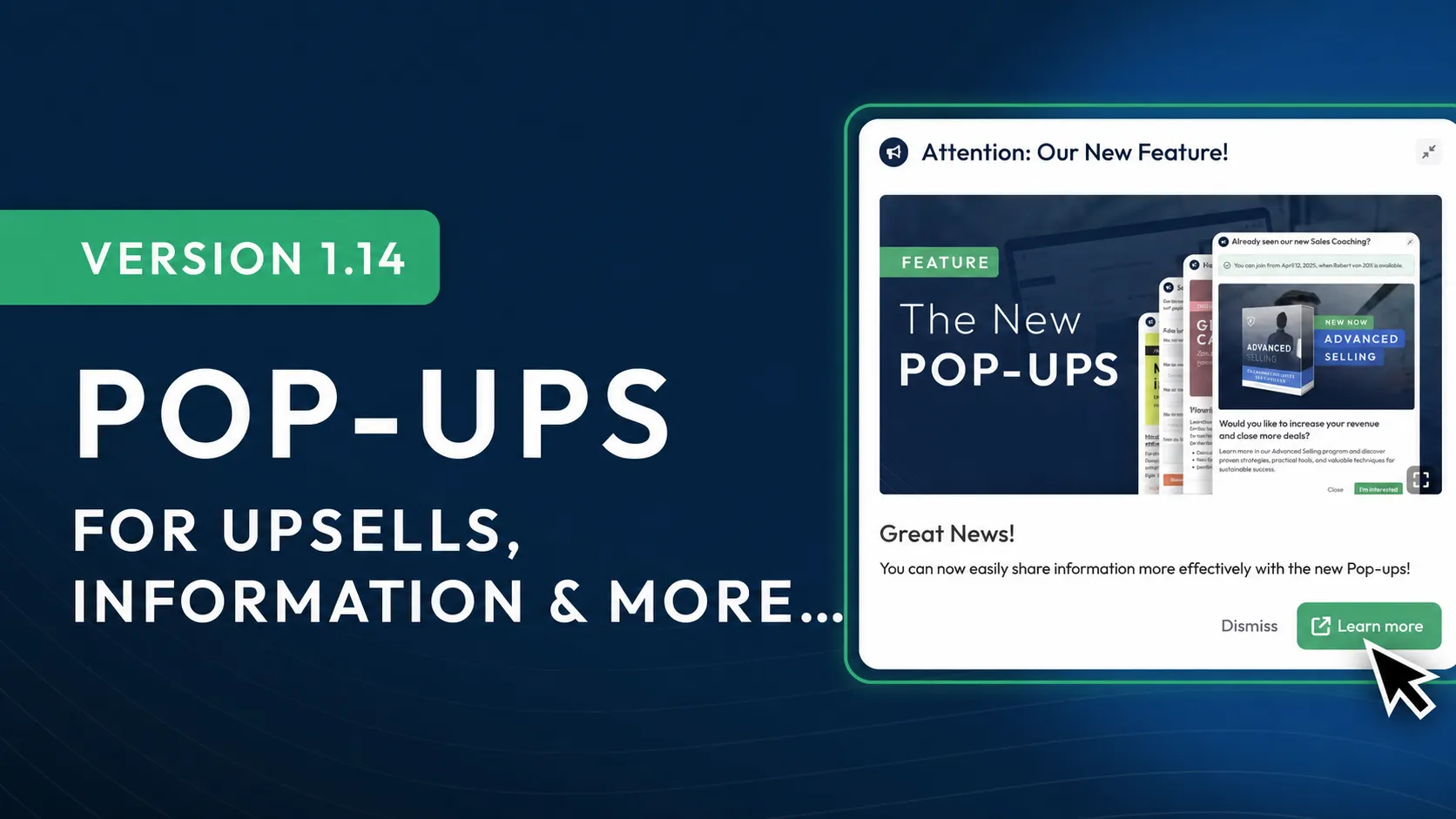
Custom Pop-Ups for Upsells, Information & More
You can now create Pop-Ups in LearningSuite effortlessly with drag-and-drop and display them specifically to customers or employees.
Whether for upsell offers, Google reviews, event announcements, surveys, or live calls—you’re in full control. Decide who sees your Pop-Ups, when they see them, and how often. With real-time insights, you can instantly see who viewed a Pop-Up and how they responded.
How to Use the New Pop-Ups:
You’ll find the feature in the left sidebar under “Pop-Ups.” You’ll also find a tutorial there to help you get started if you need additional support. To create a Pop-Up right away, click “Create Pop-Up.”
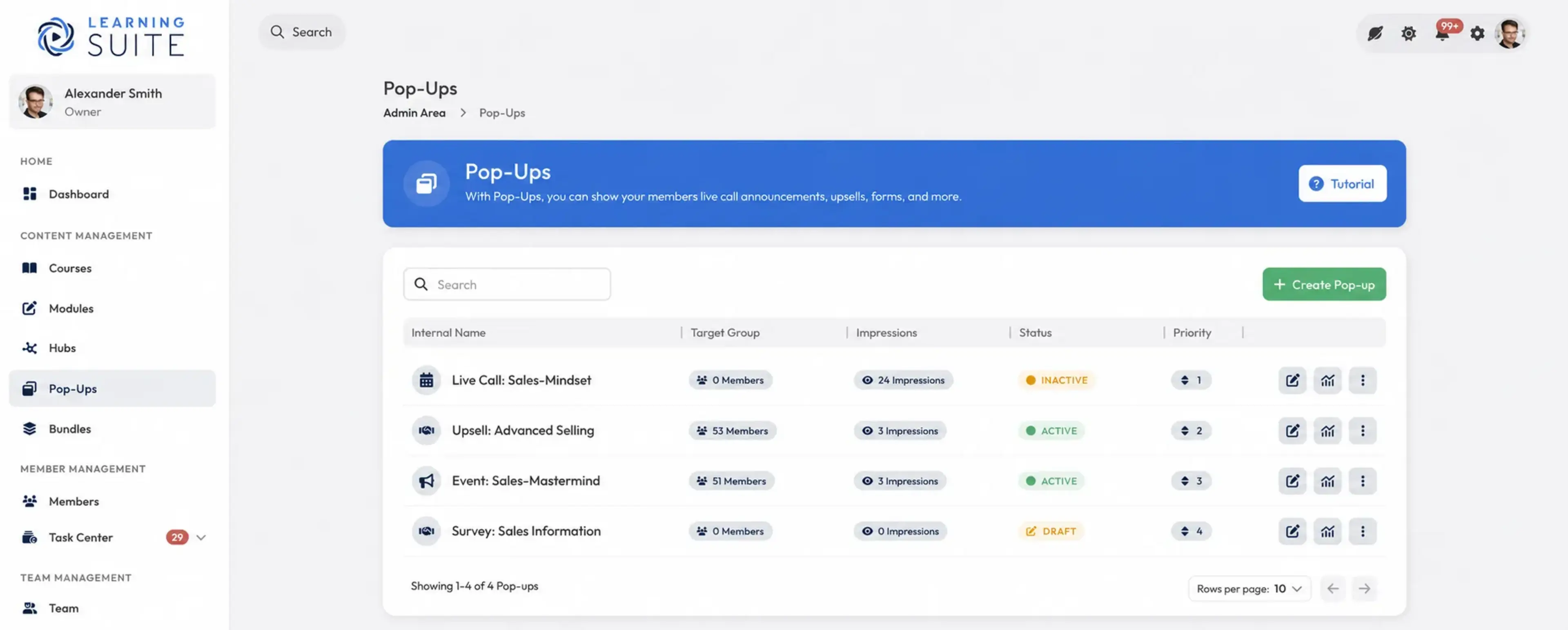
How to Create and Manage Pop-Ups
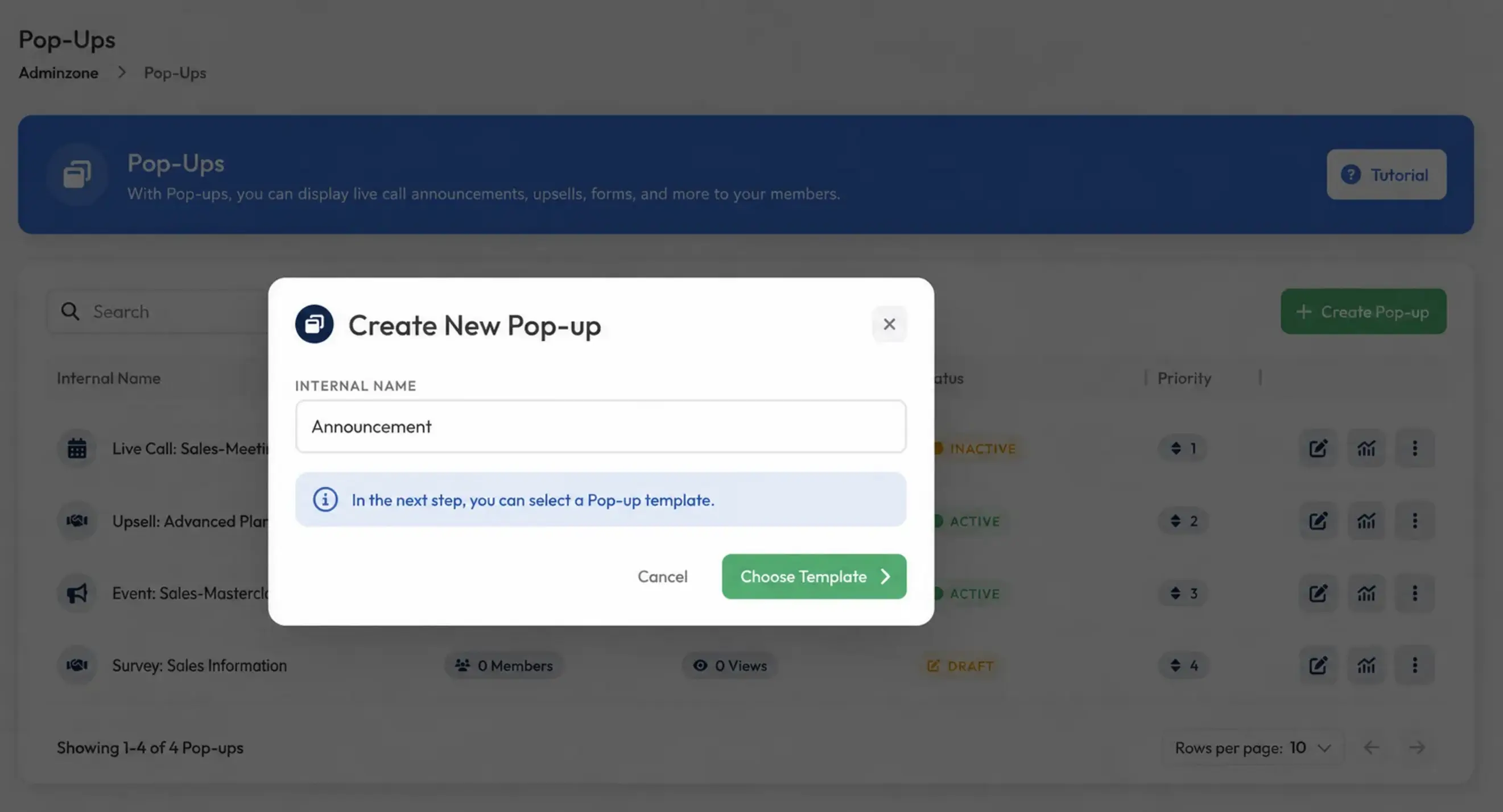
After clicking the create button, assign an internal name. Only you and your team can see this name.
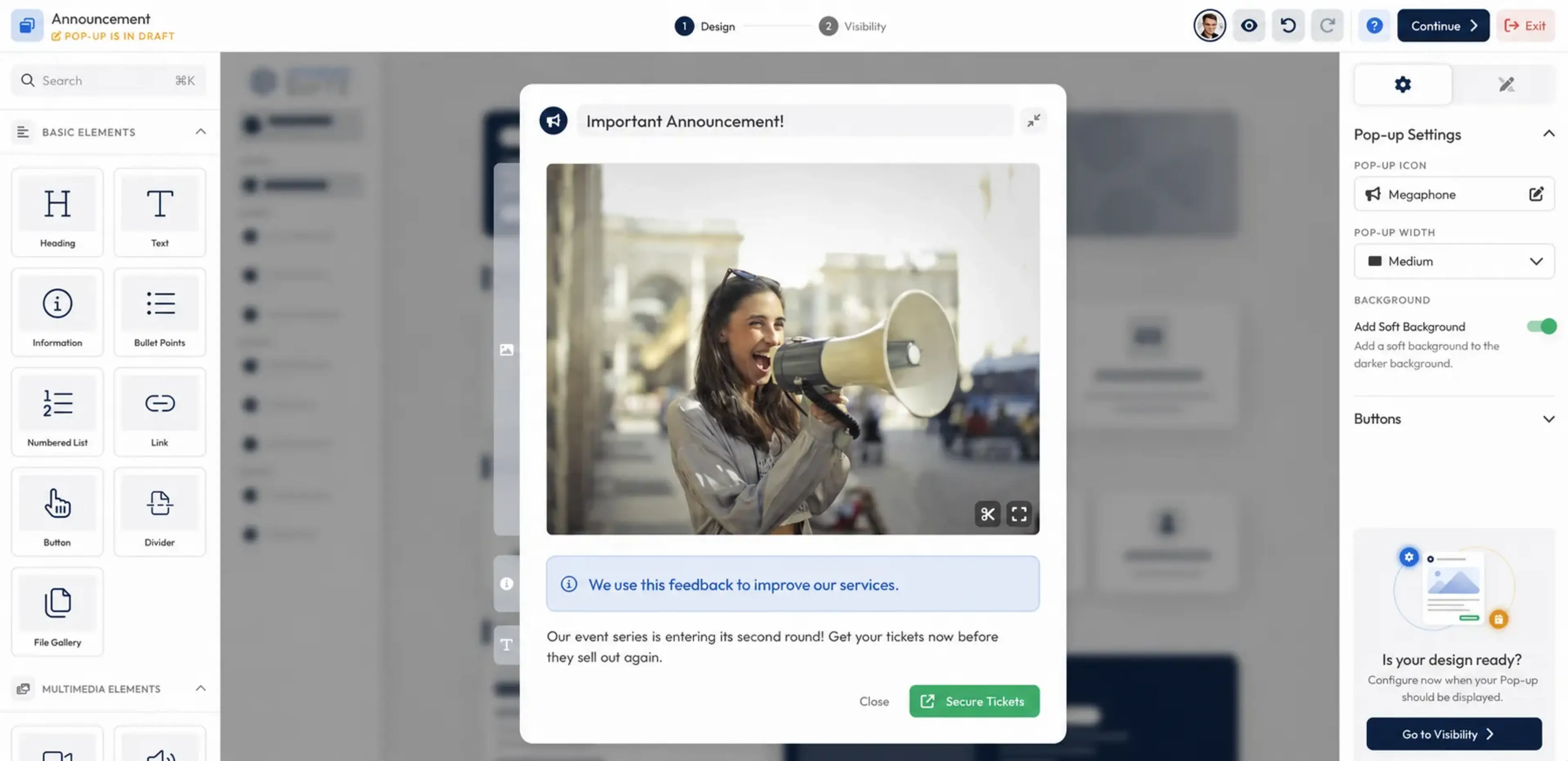
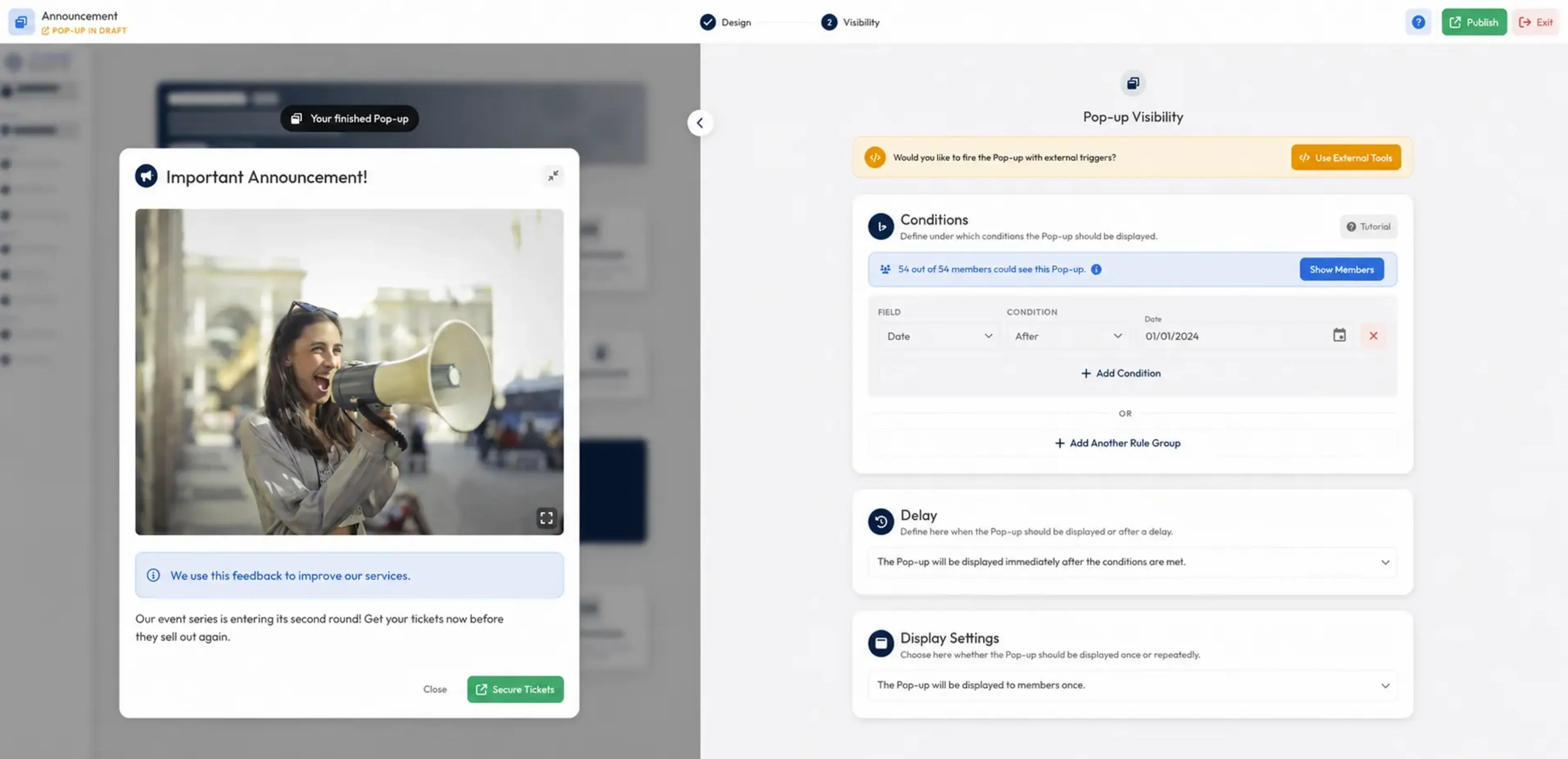
Once you’re happy with your design, select the visibility settings on the right.
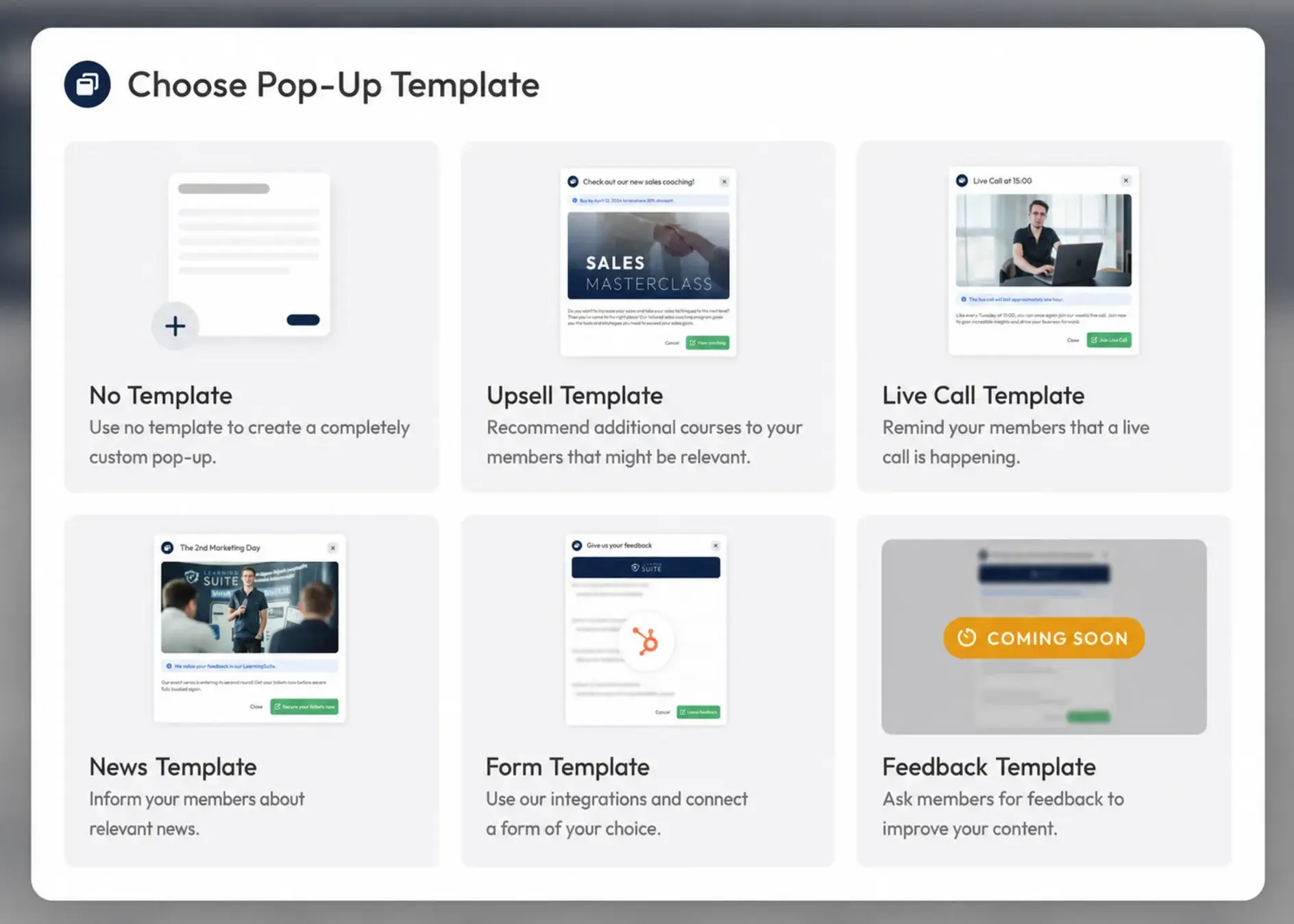
Next, choose a template. Of course, you can also start without a template and design your Pop-Up completely from scratch.
To design your Pop-Ups, you can use the content blocks in the page editor. Simply drag and drop them into your Pop-Up.
This gives you plenty of design options.
How Do I Control Pop-Up Visibility?
Here too, you have plenty of options for controlling how your Pop-Up is displayed to users on your platform. Before publishing it, you can check which users it will be shown to.
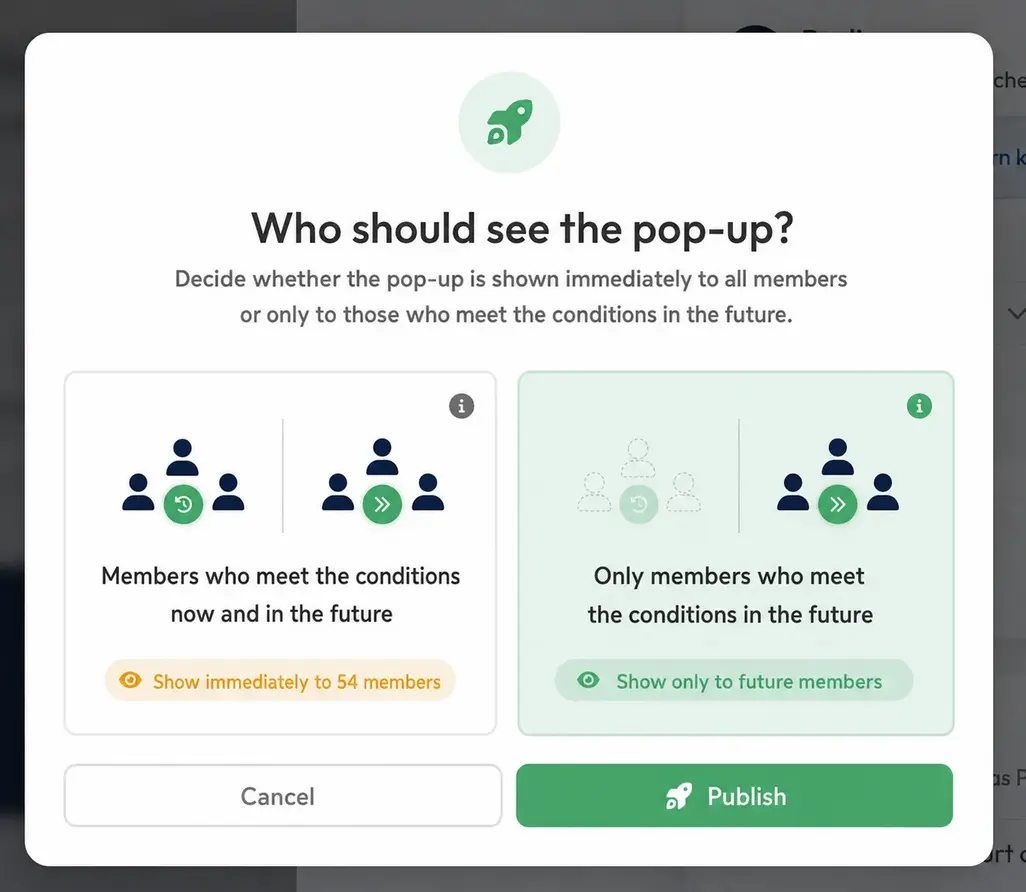
Before you publish it, define who should see the Pop-Up. You can also choose whether it should be displayed to members who met the conditions in the past.
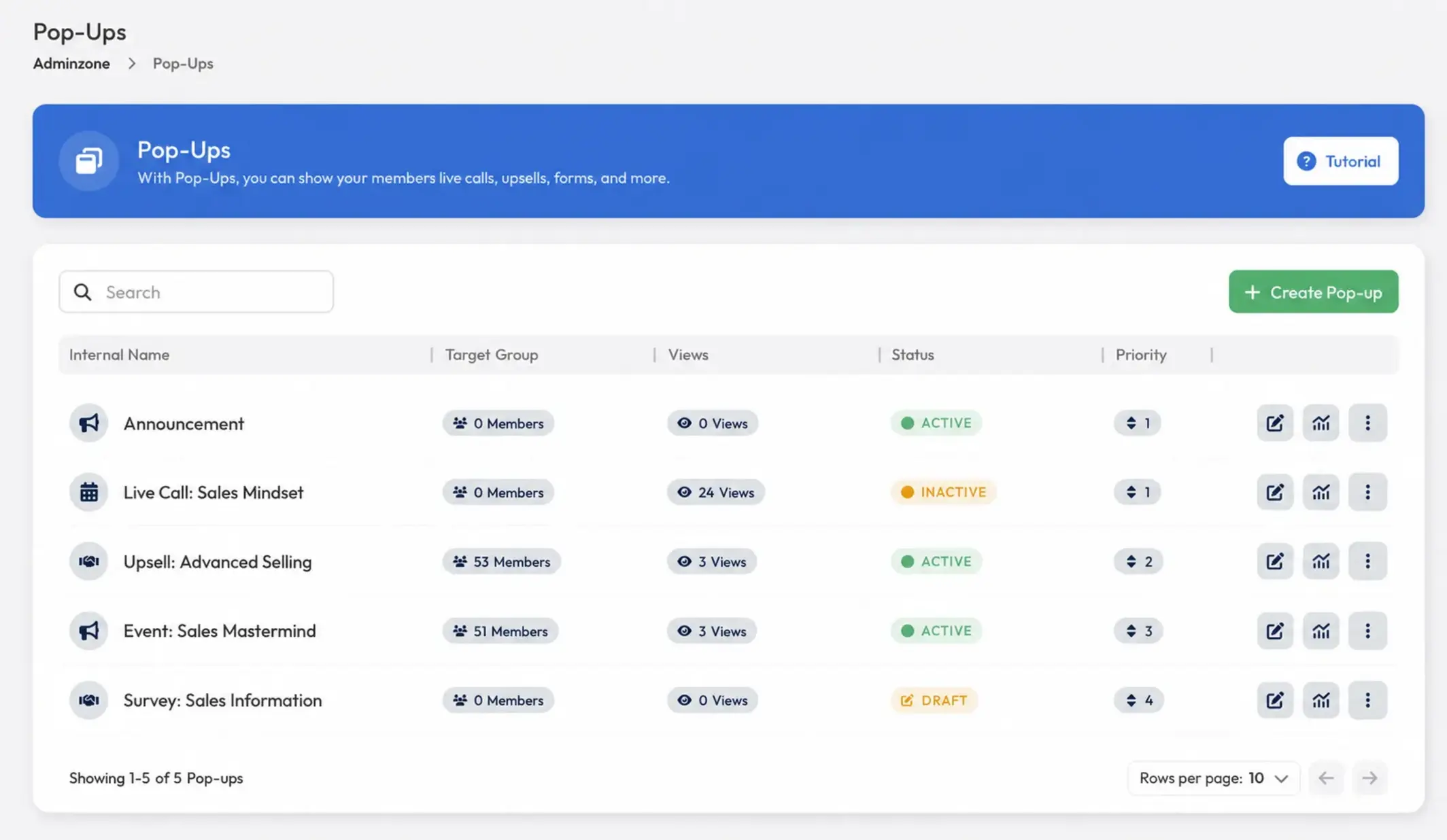
Your Pop-Up now appears in the list of all Pop-Ups and is active. Use the buttons in the bar on the far right to edit it again, view opening statistics, or delete or deactivate it later.
We’d love your feedback. Send it to us in our Facebook Community or via chat in the Help Center.
Your LearningSuite team!