.svg)
Version 1.12: Marketing Badges, Editor Updates & More
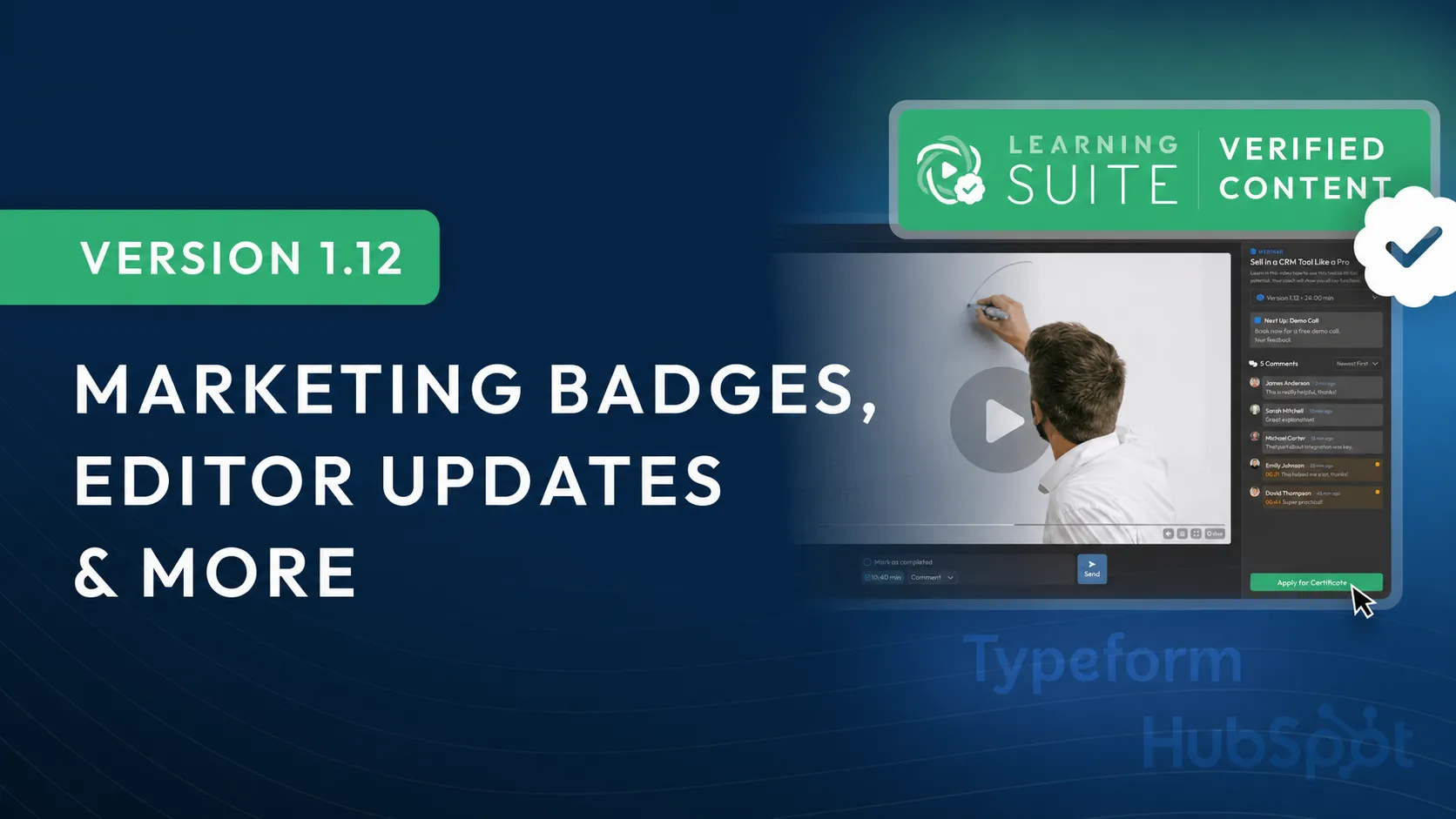
In this update, we've released exciting new features, including Marketing Badges, which give coaches and agencies a unique way to build trust through marketing. We've also added long-awaited optimizations and features to our popular submission feature.
On top of that, we've made numerous improvements to the LearningSuite editor, design, and performance.
New Features:
- Marketing Badges
- Text Submissions 2.0
- Fullscreen review for video submissions
- Internal notes for submission comments
- Open User Pop-ups from anywhere
- + many more improvements
Editor Improvements:
- Element search in the editor
- Indentable bullet points
- New element: Sorting task
- New element: Hub link
- Copy function for elements
- 3 new form integrations
- Style settings for image elements
- Improved element order
- Design improvements for selected elements
Marketing Badges
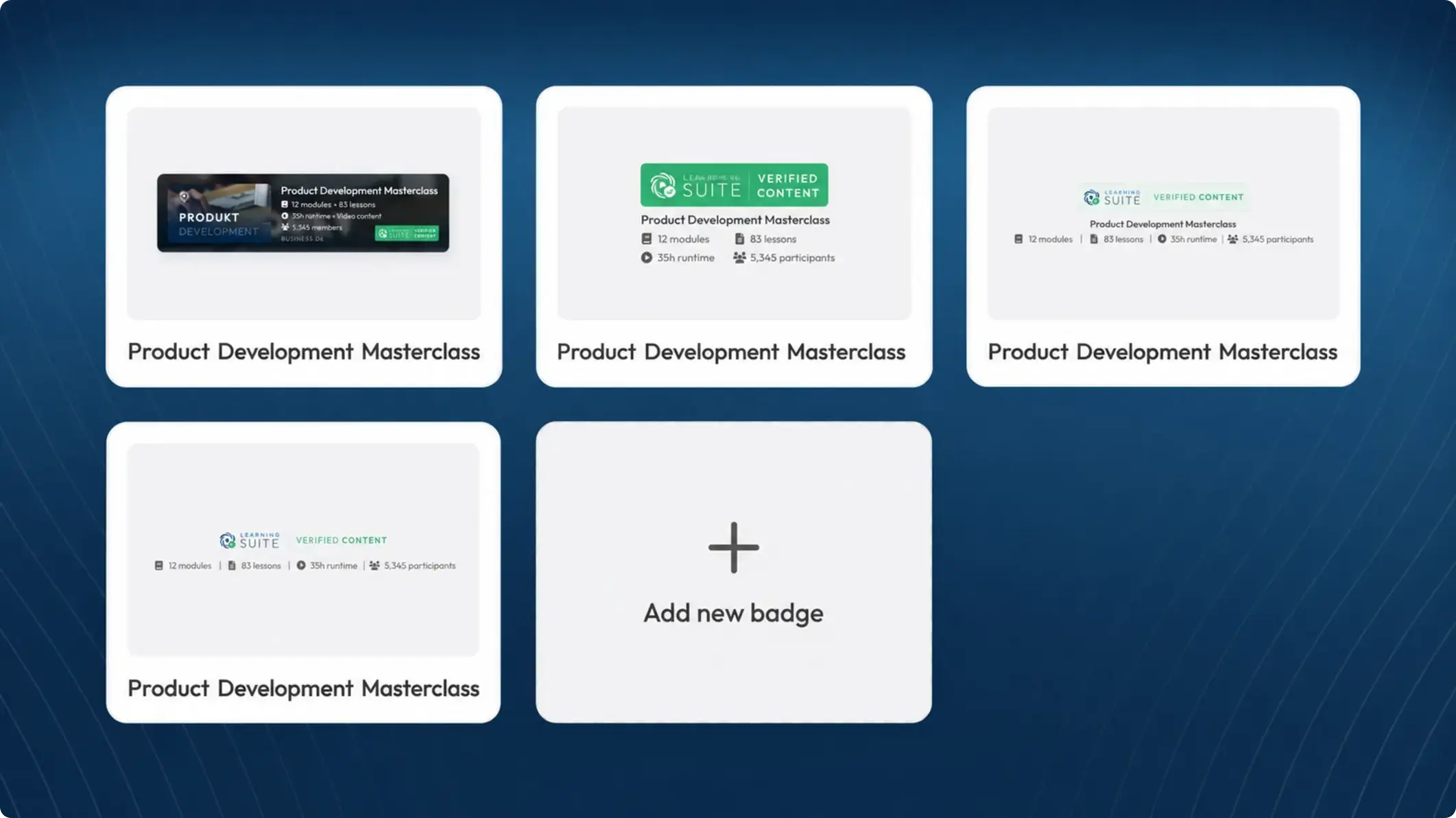
Place Marketing Badges on your website landing pages to show prospective customers the comprehensive quality of your Courses.
We fully verify these badges. When someone clicks the LearningSuite Badge, an official LearningSuite website opens with all metrics related to your Course and information about your company.
This gives you a completely new and unique way to strengthen your audience's trust.
Marketing Badges are perfect for:
- Confirming the scope of your online Course for prospective customers.
- Showcasing the scope of your internal Employee training on your careers page.
- Officially confirming the content of Course lead magnets.
Text Submissions 2.0
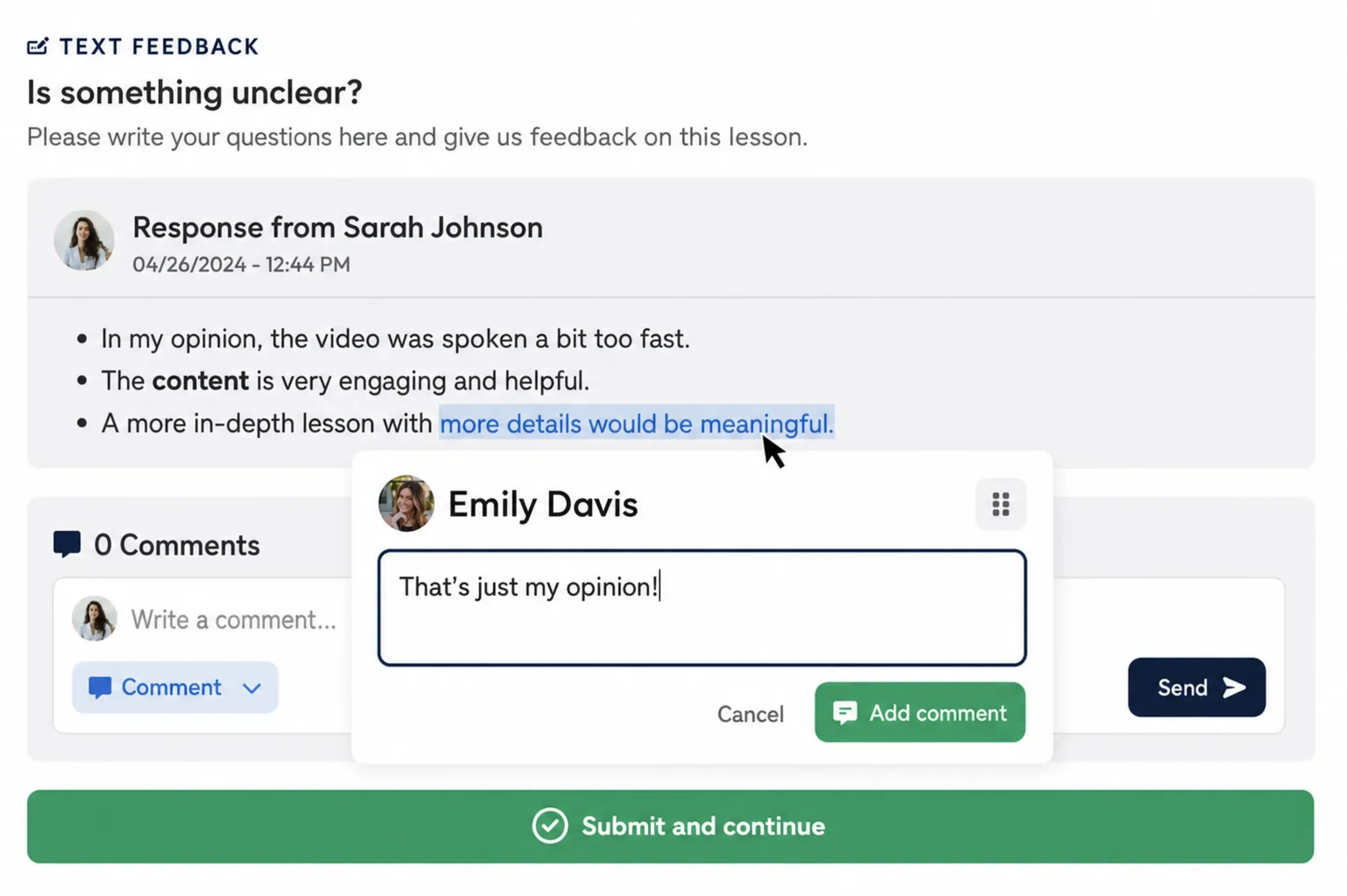
Rich Text Submissions Are Now Available:
You can now write rich text. What does that mean? Members can send you formatted text, including headings, bullet points, and formatting. This means you can now use text submissions for more complex use cases—you could even use them for a German-language school assignment in theory.
Improved Commenting
Just like in Google Docs, you can now comment on individual sections of text. As an instructor, simply highlight the relevant section in a submission and click the comment button. This lets you give precise feedback and show Members exactly where there's room for improvement.
Fullscreen Review for Video Submissions
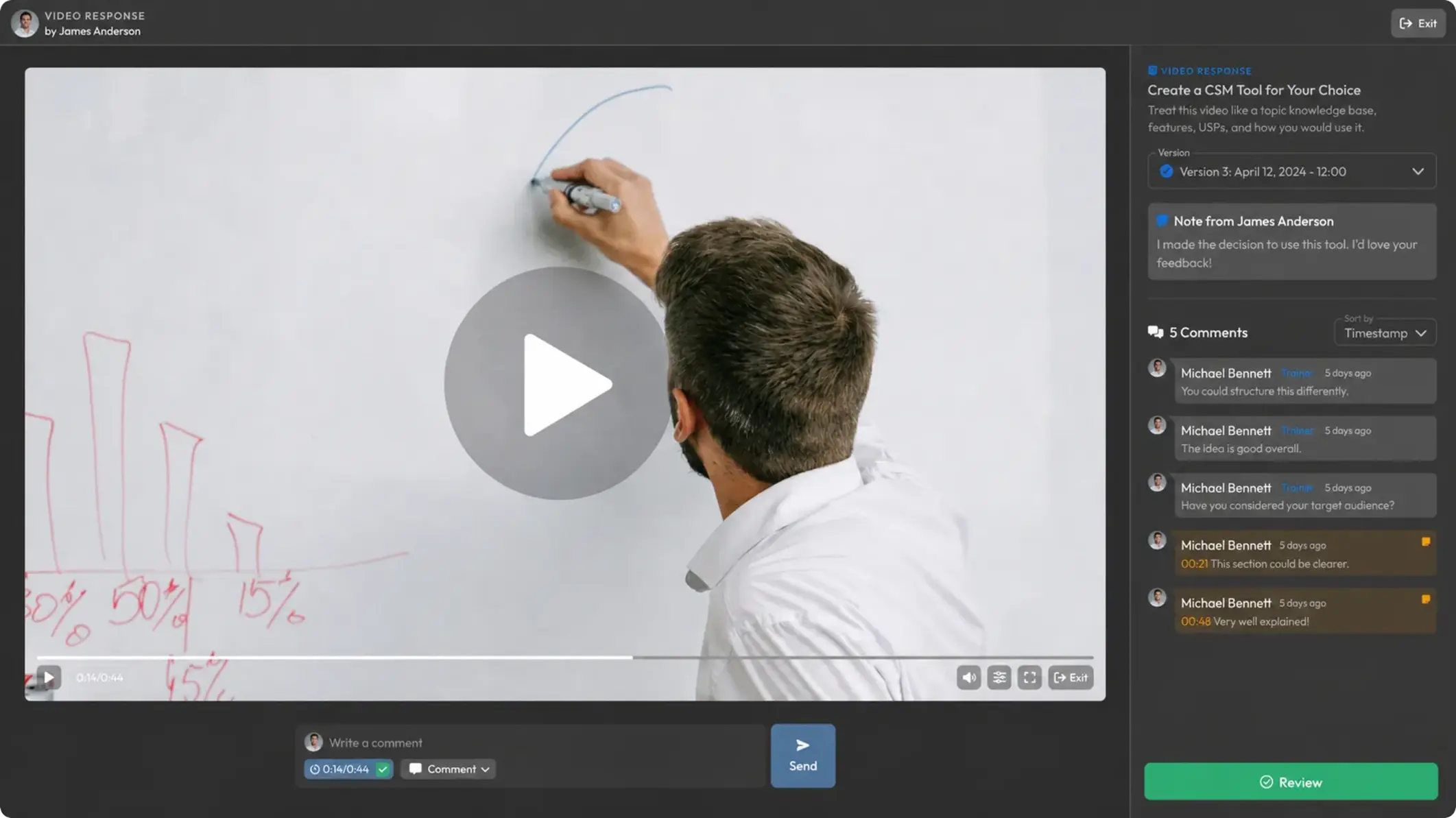
Video submissions also get a major new feature that makes reviewing and commenting on videos even easier. You can now open submitted videos in fullscreen mode. This opens our new video review Pop-up, where you can see the video at its largest size while still sending comments down to the exact second.
To make sure you have all the information you need, the task name, description, and the Member's added note are displayed in the top-right corner. With this feature, we want to further improve the instructor experience so you can give Members the best possible feedback.
More Improvements for Submissions
We've also improved commenting. The text field has received a design update, and we've added a new feature:
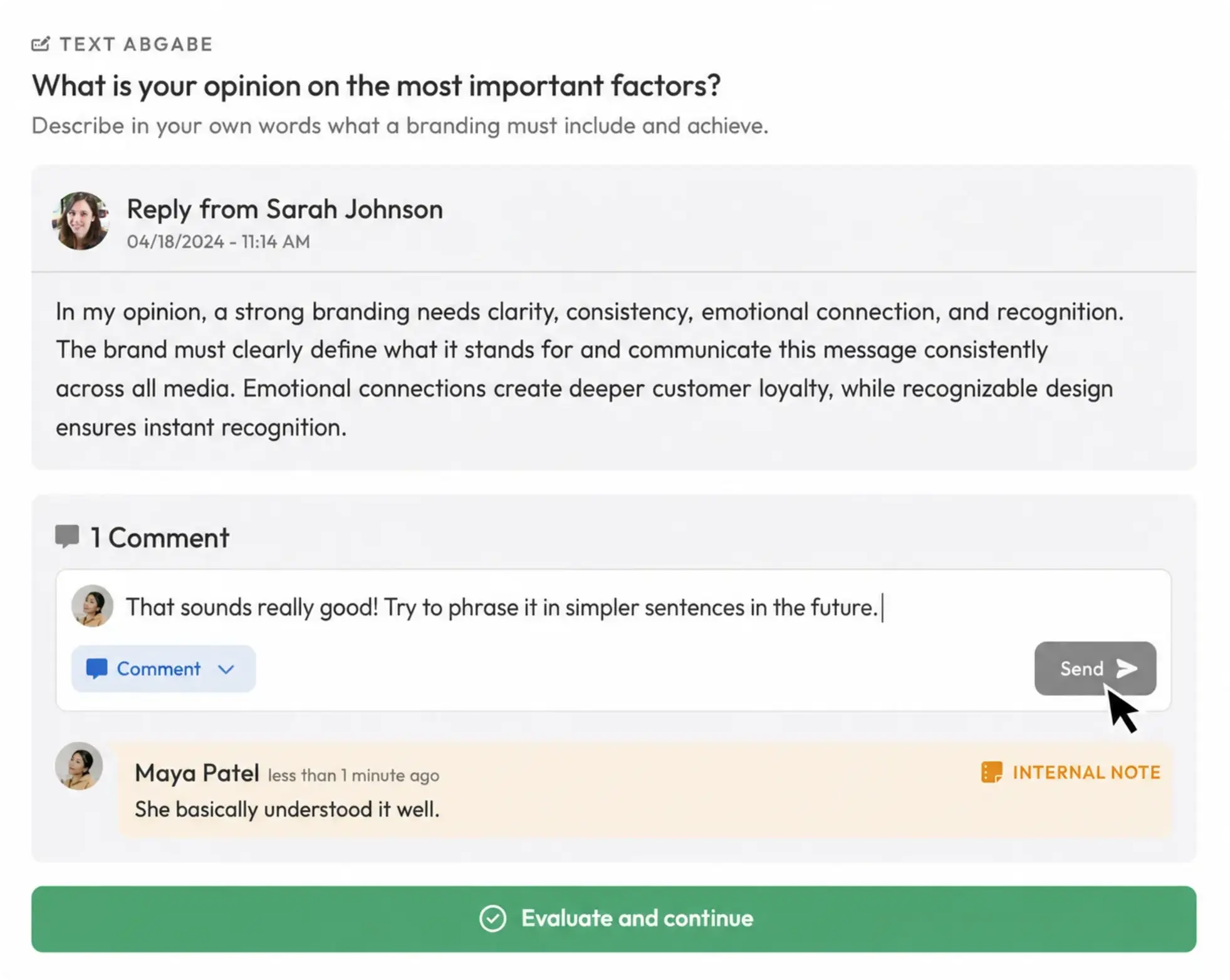
Internal Notes
With internal notes, you can write comments that only instructors can see. This lets you document important information, such as observations about a Member, so you can better respond to each learner's individual needs and Capabilities.
Comments on File Submissions
With file submissions, you can now comment on individual files separately. For example, if you create a submission where five images need to be uploaded, you can now address and comment on each image individually.
More Improvements
Members can now also use links in comments and additional explanations. These links are visually highlighted.
Open User Pop-ups From Anywhere
It's often important to access User information at specific moments. For example, when you're reviewing someone's submission or looking at a person's statistics in a Course.
That's exactly why you can now click the name on any User avatar to open that User's Pop-up from wherever you are.
Element Search in the Editor
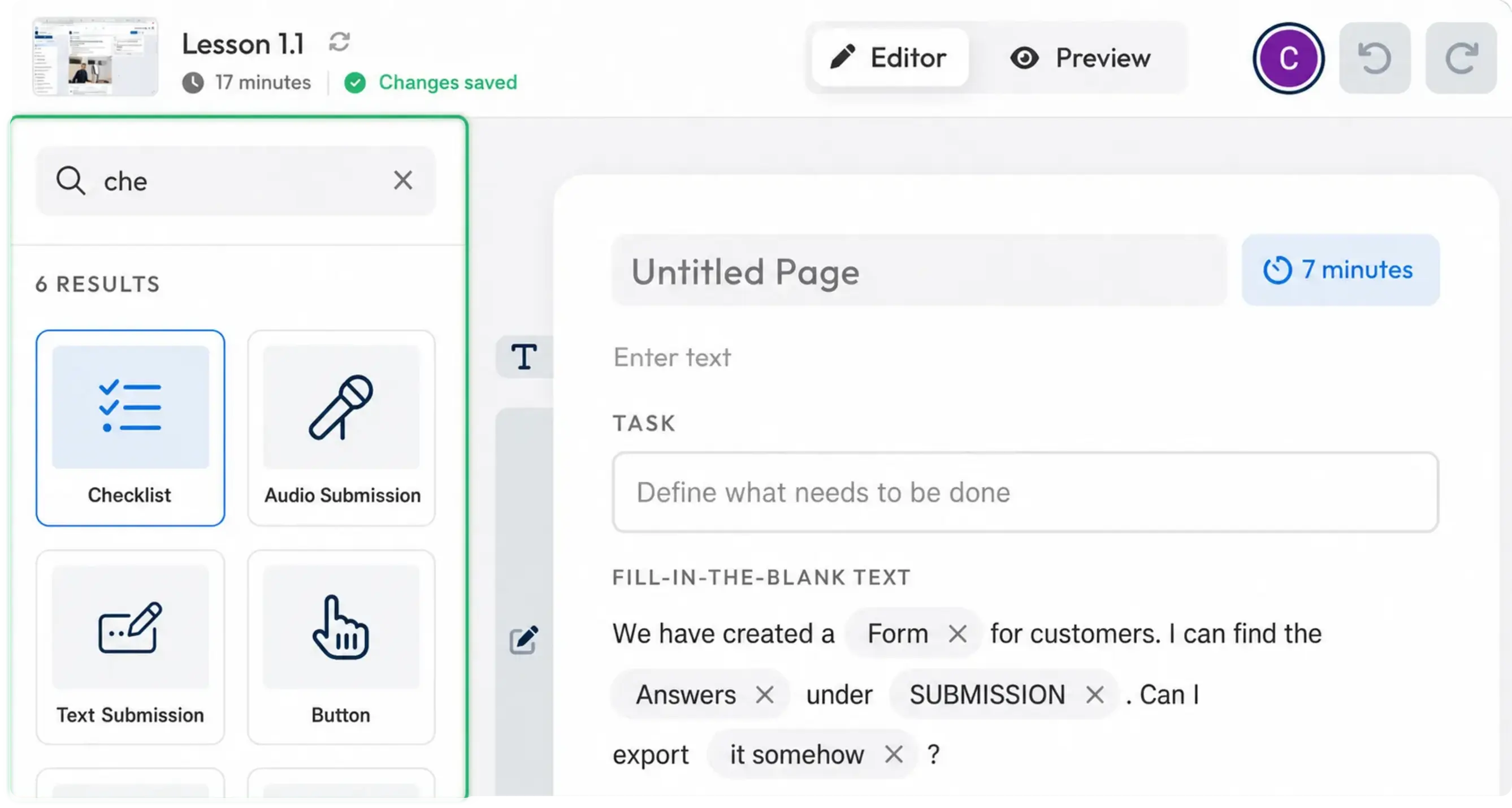
You'll now find element search at the very top of the editor's left sidebar. Use it to find content quickly and easily.
Here Are Some Tips to Get the Most From Search:
- Press Ctrl+K on Windows or ⌘ + K on macOS to instantly open search anytime
- Once you've entered a search term, use Tab or the arrow keys to move between the elements you find
- To insert an element, use drag and drop as usual or press Enter to instantly add it where you left off
Give search a try. Once you get used to it, creating content becomes much faster :)
New Element: Sorting Task
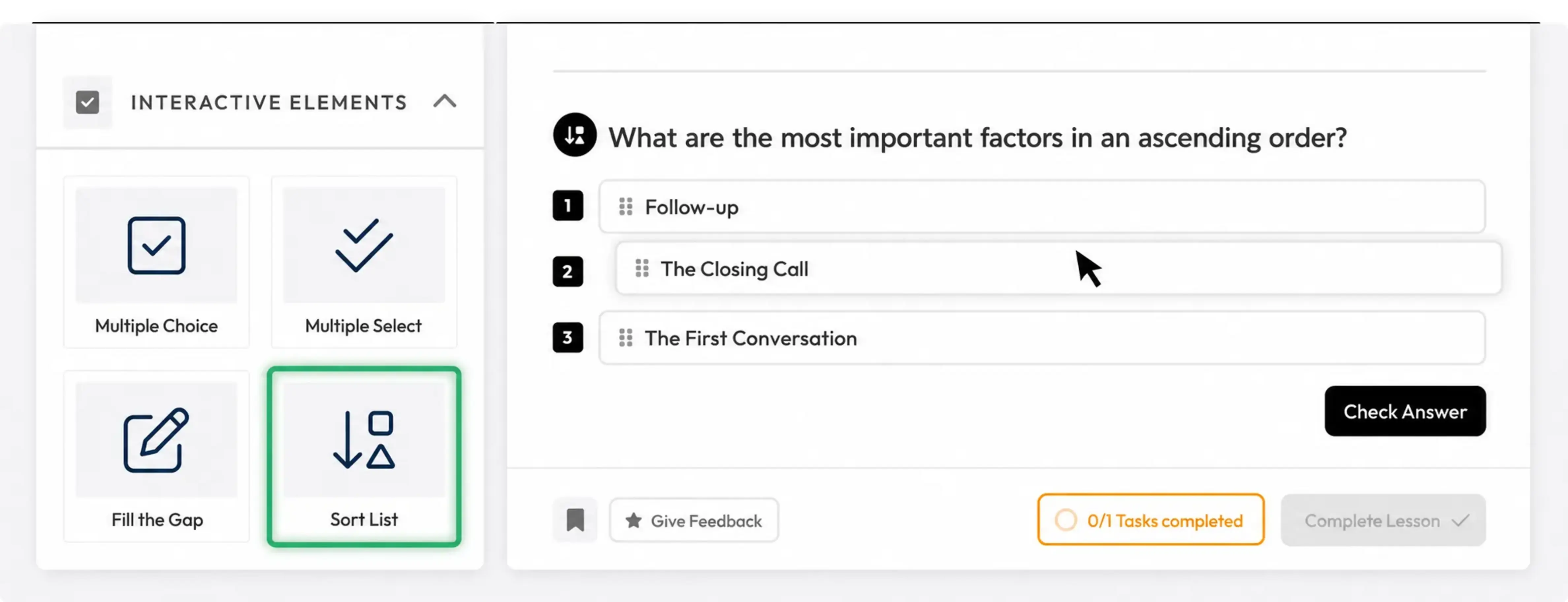
With the new interactive sorting task element, you can check even more effectively whether your Members have truly understood what you've taught. In this element, Members need to move items into the correct order.
New Element: Hub Link
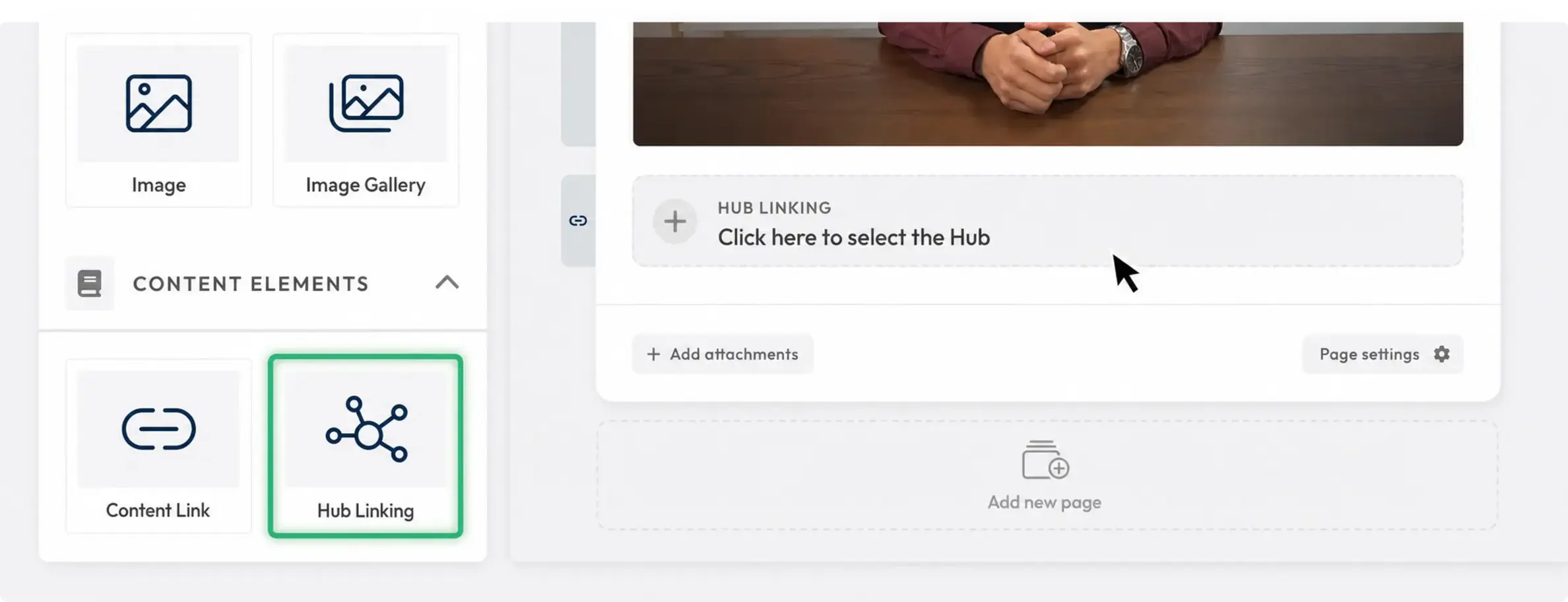
Just like content links, Hub links now let you link directly to Hubs from the editor.
Style Settings for Images
You can now make a range of style adjustments to images in the editor. Disable the fullscreen button or show and hide the outer border.
You can also adjust the background color for illustrations such as SVG files or PNG files with transparent backgrounds.
3 New Editor Integrations
We've added three new integration options to the editor:
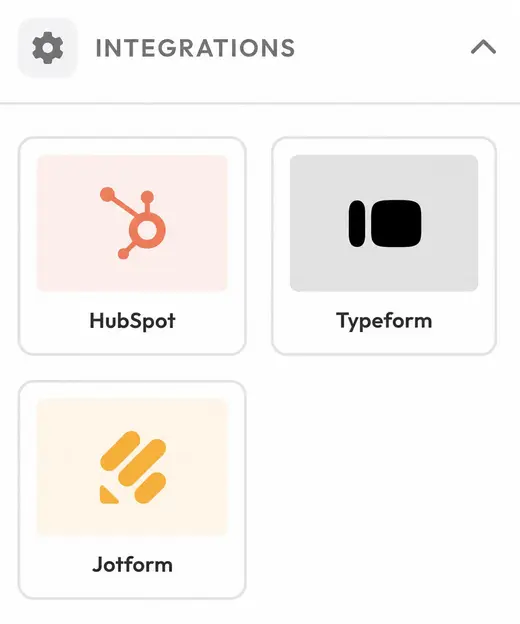
At the very bottom of the editor, under the "Integrations" tab, you'll now find the option to embed HubSpot, Typeform, or JotForm forms to collect data from your Members.
More Improvements:
- The global search now shows when Modules appear in multiple Courses
- The Custom Code editor has been redesigned
- Dark mode has been optimized and improved in several areas
- Submission elements now trigger the style panel no matter where you click within the submission
- Under "My LearningSuite" in settings, you can now activate the LearningSuite Badge, which Members see in the bottom-left corner of the sidebar.
- You can now regenerate video transcripts if AI made an error recognizing speech
- Videos in the editor now include a setting to lock playback speed
- Major performance update for submissions: submissions now load in just a few milliseconds, even with several hundred thousand submissions
- You can now copy all elements and paste them into any Lesson across your platform.
- You can now indent bullet point lists up to 9 levels
- Numerous bug fixes & optimizations
We'd love your feedback. Send it to us in our Facebook Community or via chat in the HelpCenter.
Your LearningSuite Team!