.svg)
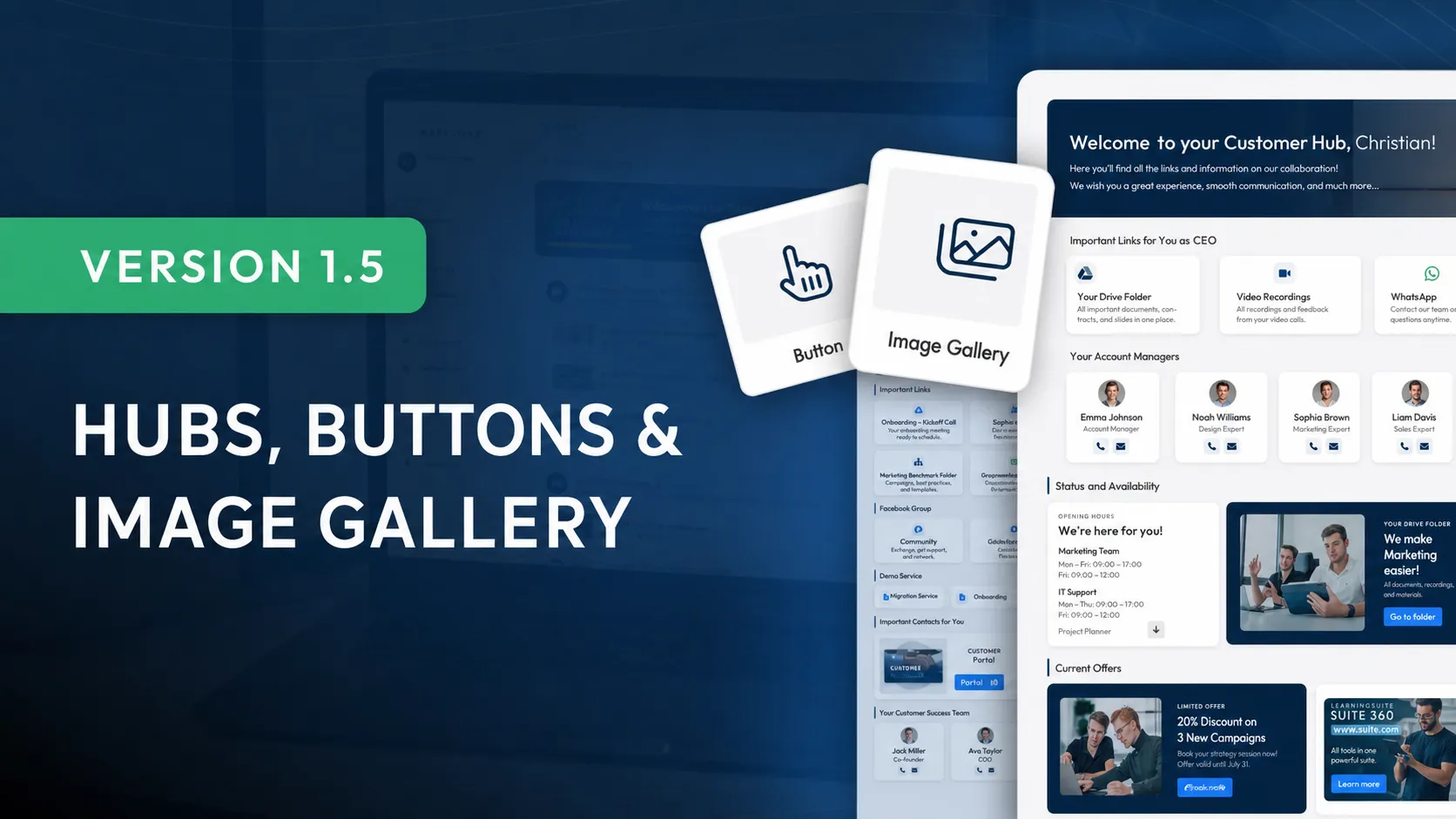
Version 1.5: Hubs, Buttons & Image Gallery
This is the biggest update we've released since LearningSuite officially launched. Not only have we added an absolutely groundbreaking new feature to LearningSuite—one that has never existed in this form in the e-learning market—but we've also worked on numerous additional features, improvements, and optimizations.
All Changes at a Glance:
Official Release of Hubs:
- Create your own templates
- Hub status indicators
- Set the sort order
- Refined widgets & popups
Editor Improvements:
- New element: Button
- Image Gallery now includes a slider
- Audio element has a new design
- Improved video recorder design
Settings:
- Default language is now configurable (if not German)
- Platform color display is now configurable (force Dark Mode)
User Management in Courses:
- Custom content access for users
- Add Bundles and groups directly in the Course
Smaller Changes:
- Design improvements in the video recorder
- Improved submission sorting
- The author design below the Course information has been refreshed
- Images now load significantly faster, even with a slow internet connection
- Several display improvements and optimizations in the learner view
Official Release of Hubs
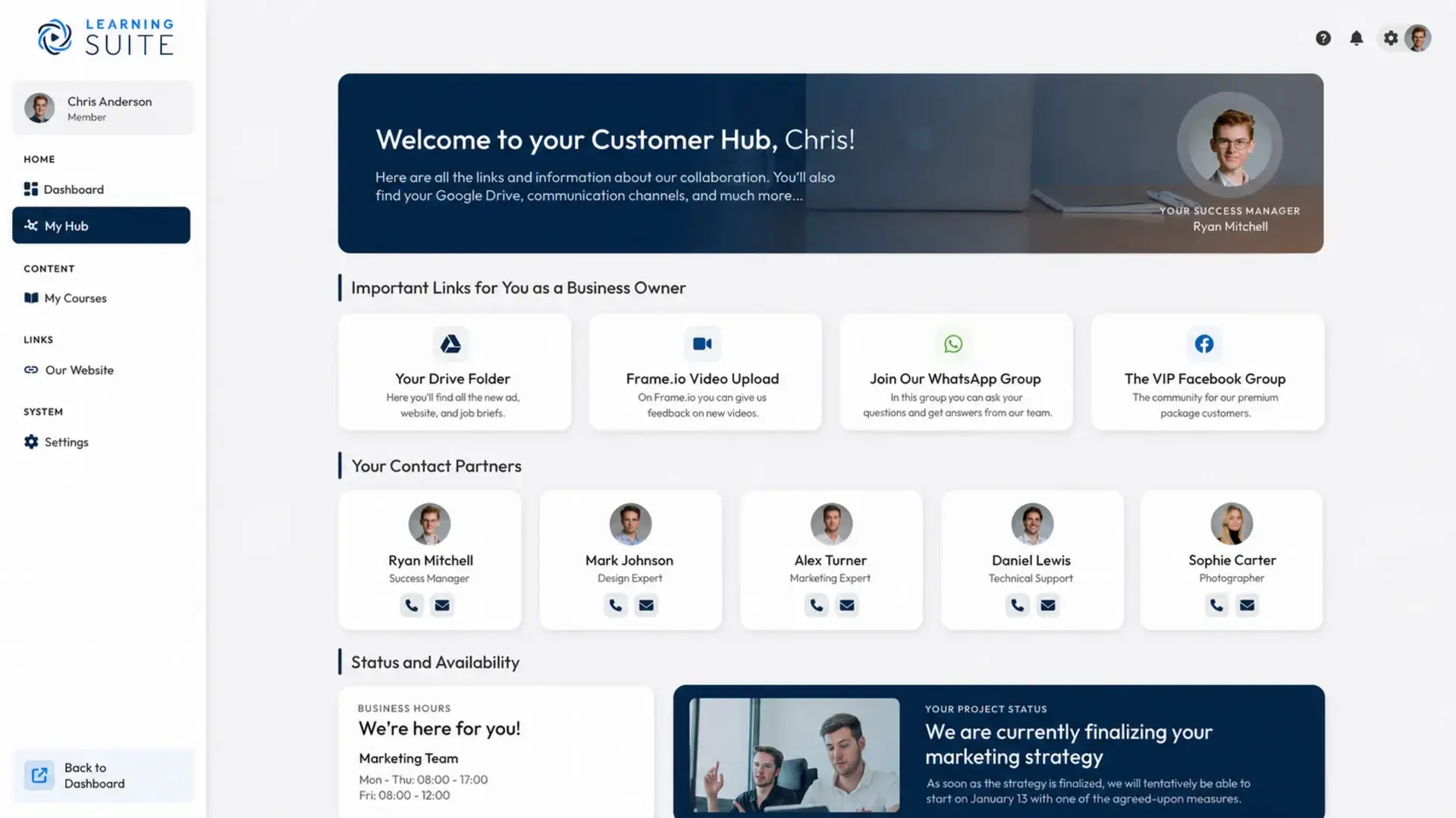
What Are Hubs?
With Hubs, you can create dashboards with a wide range of elements, including links, images, text, and much more. Build an intranet for your employees or share important links and information with your customers.
How Do I Create a Hub?
As you'd expect from LearningSuite, creating Hubs is effortless. Simply go to the "Hubs" tab in the left sidebar and create your first Hub by adding a name and description. In the second step, you can choose a template.
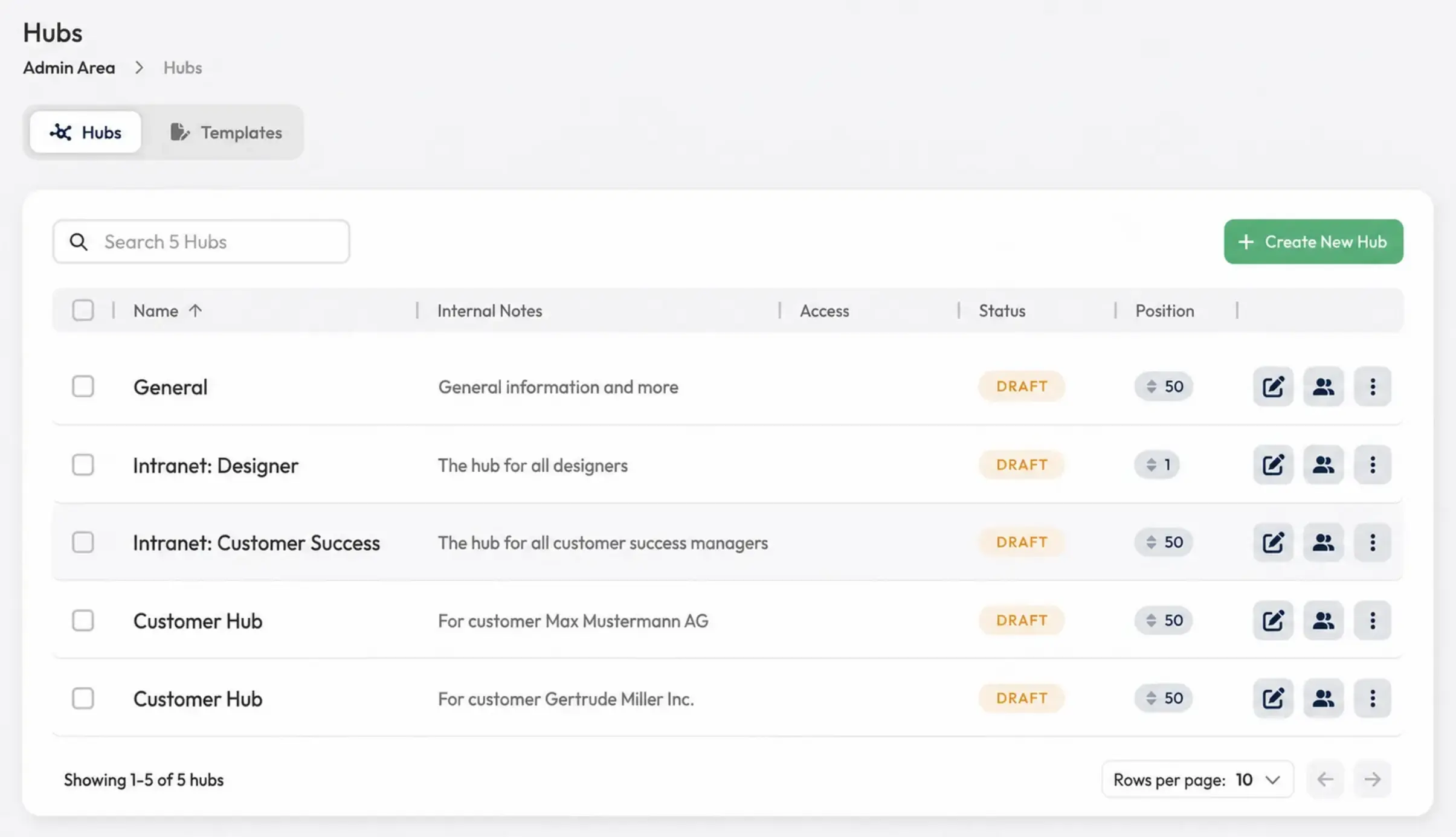
Create Your Own Templates:
Under the new "Templates" tab, you can now create your own templates. For example, create a customer Hub template for one of your customers and reuse it for other customers.
Set the Sort Order for Hubs:
To give you an even clearer overview of your Hubs, we've added a sort order. Enter a weight for your Hub as a number between -999 and +999. Hubs with the lowest number are always displayed first.
Status Indicators in the Hub List:
We've also added status information to the Hub list. You'll see 3 statuses:
- Draft: Displayed when the Hub has not yet been published and Members cannot see it.
- Live: Displayed when the latest version of the Hub has been published.
- Changes: Displayed when there are unpublished changes in the Hub that users cannot see yet.
New Widget: Spotify Integration
With the Spotify widget, you can easily share your podcast or a playlist with your Members.
Hubs Are No Longer in Beta:
We've optimized all widgets. They now display perfectly across all device types. We've also optimized creating and editing widgets in Hubs.
Editor Improvements
Audio Player Has a New Design:
The audio player in the editor has a new design. It offers significantly more space for the title than before and always looks perfect on mobile devices.
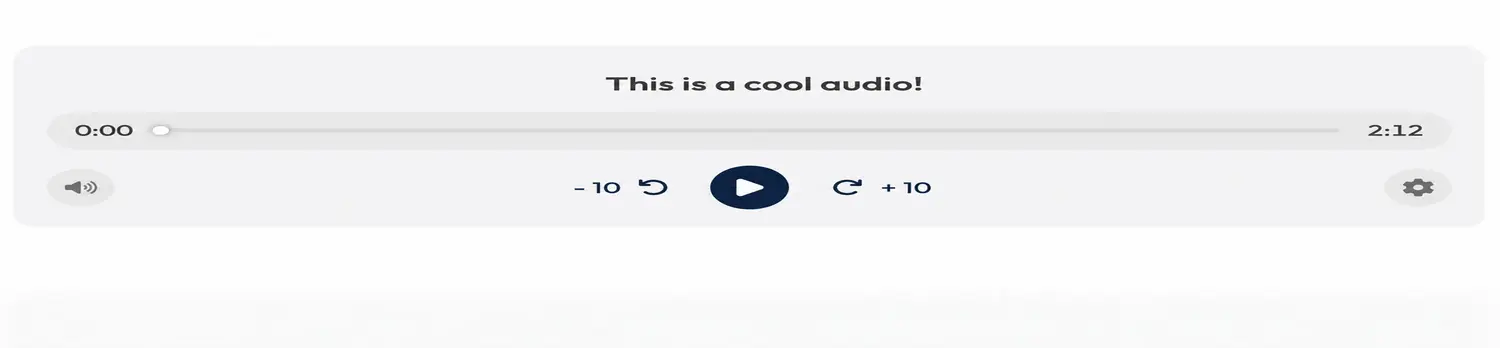
Image Gallery Improvements:
In the Image Gallery, you can now click a photo to open a slider and view your images in more detail. From there, you can move back and forth between photos and zoom in and out to see relevant image details more clearly.
New User Management in Courses
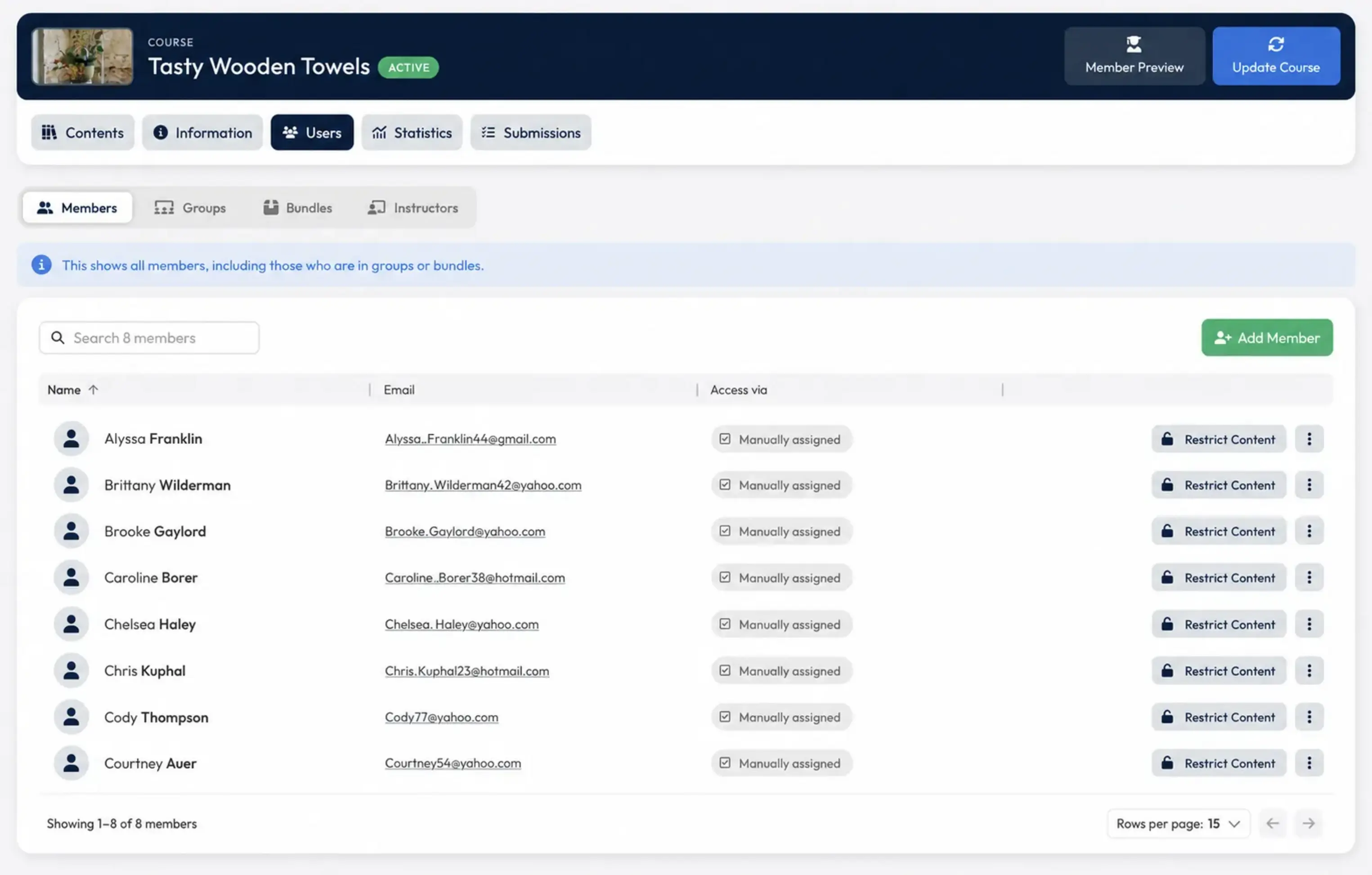
Custom Content Access for Users:
You can now grant individual users access to specific Modules. Give customers moving over from another platform direct access to Modules that were already unlocked, or respond individually to special customer requests.
Add Bundles and Groups Directly in the Course:
You can now add groups and Bundles directly in the Course. Simply click the relevant tab.
Settings
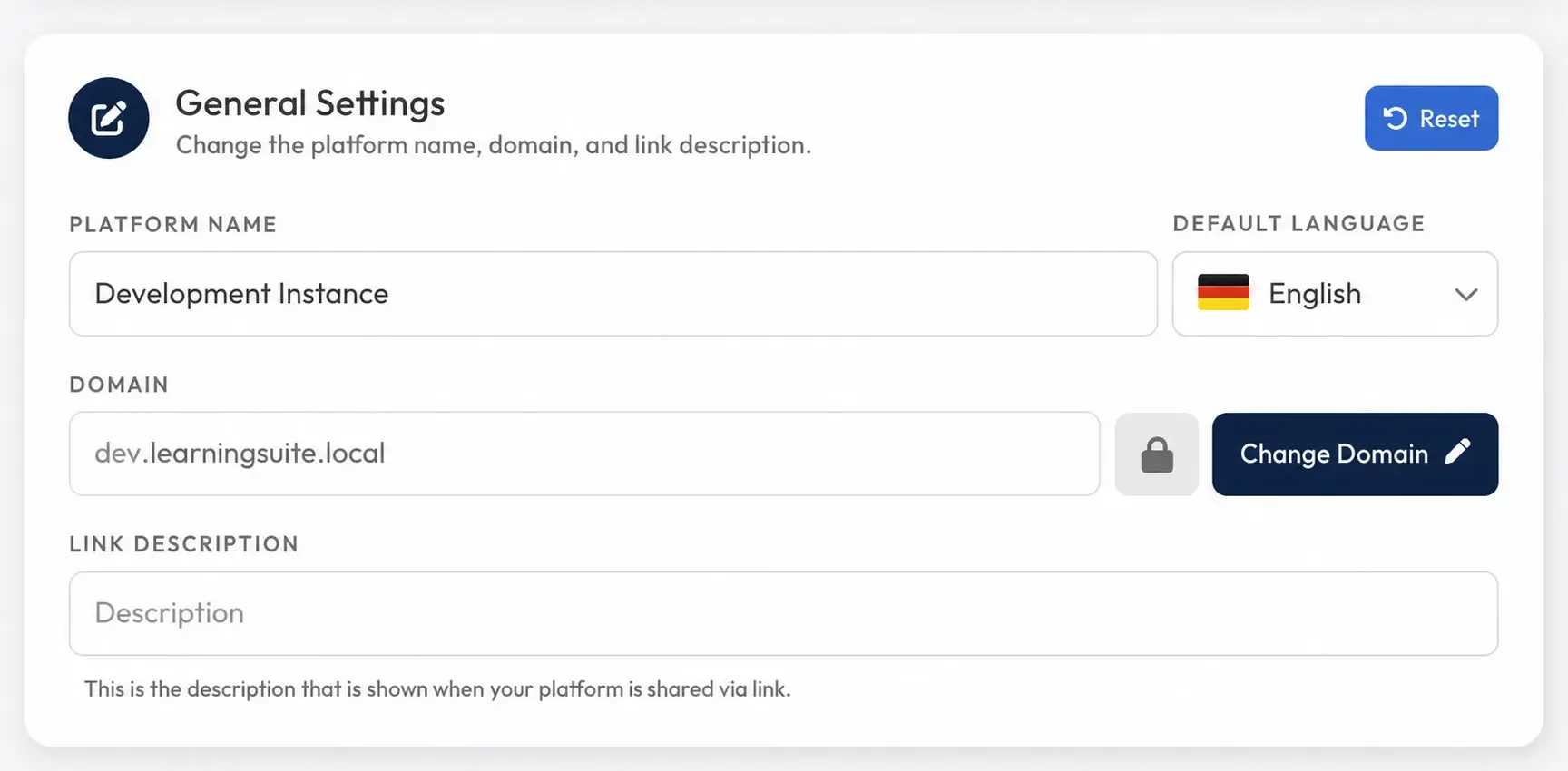
Default Language Is Now Configurable:
If your default customer language is English rather than German, you can now change the language under Settings --> MyLearningSuite. With this change, initial login details are automatically sent in the selected language, and that language is selected by default for every user.
Platform Color Display
You can now choose whether your instance is displayed in Dark Mode or Light Mode by default. You can also specify that your customers may only use your instance in Dark Mode or Light Mode.