.svg)
Version 1.6: Video Cutter & Video End Cards
With this update, we're extending our lead in the e-learning market. We were the first learning platform to let you record videos directly in the content editor. This has already saved our customers countless hours, as they don't need a separate tool to record videos and then painstakingly upload them to the platform.
Today, we're taking it one step further and replacing the next tool. This makes it even easier to record learning videos and lets you create learning content for your members even faster – because LearningSuite now lets you edit videos directly!
And we haven't just built a simple Video Cutter that trims the beginning and end. We've gone the extra mile, so you can also cut out speaking mistakes in the middle of a video. Best of all? You can edit not only videos recorded in LearningSuite, but uploaded videos too.
But the new Video Cutter isn't the only feature you can look forward to in update 1.6!
Video Editing:
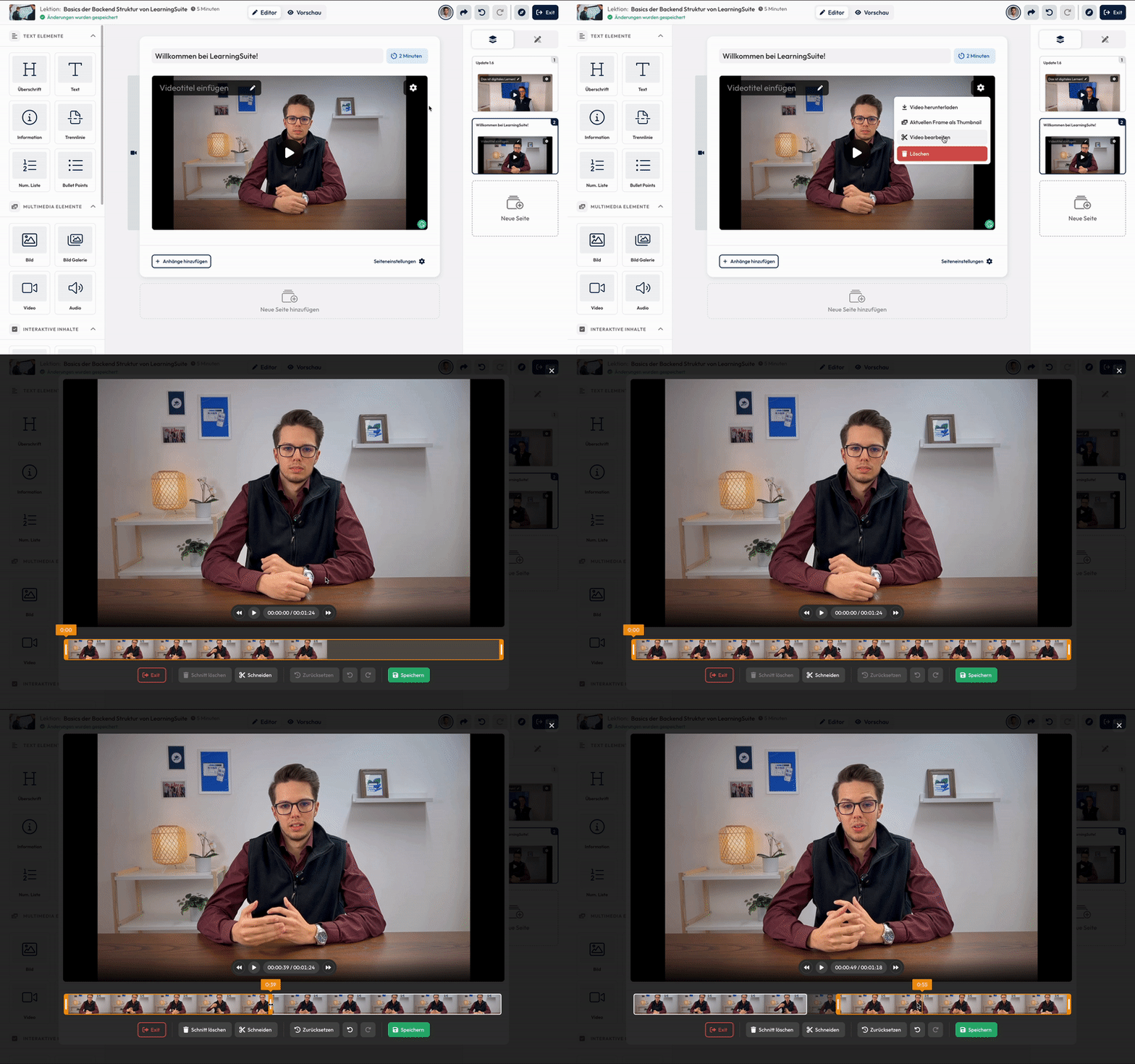
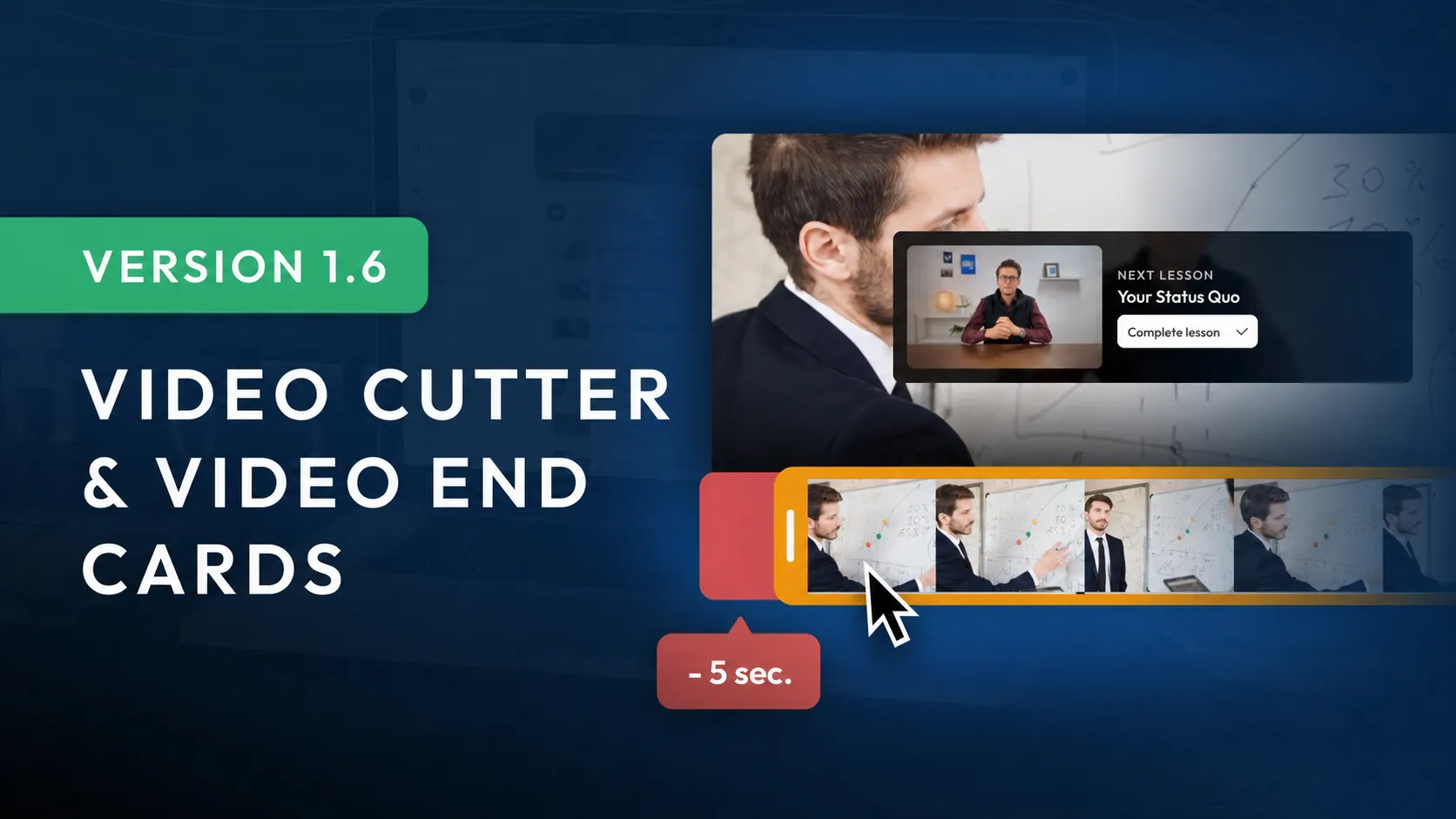
As an editor, the LearningSuite Video Cutter lets you edit every uploaded video. Easily cut out speaking mistakes or trim the beginning and end.
This cutter also gives us the foundation to add many more great features in the future, such as re-recording individual scenes or adding an intro or outro. Stay tuned! 🚀
Edit Videos After Recording:
After recording a video in LearningSuite, you'll now go straight to the Video Cutter. If you don't want to make any cuts, simply click Save. Otherwise, you can trim the beginning and end or cut out speaking mistakes in the middle of the video.
Trim the Beginning and End of Videos:
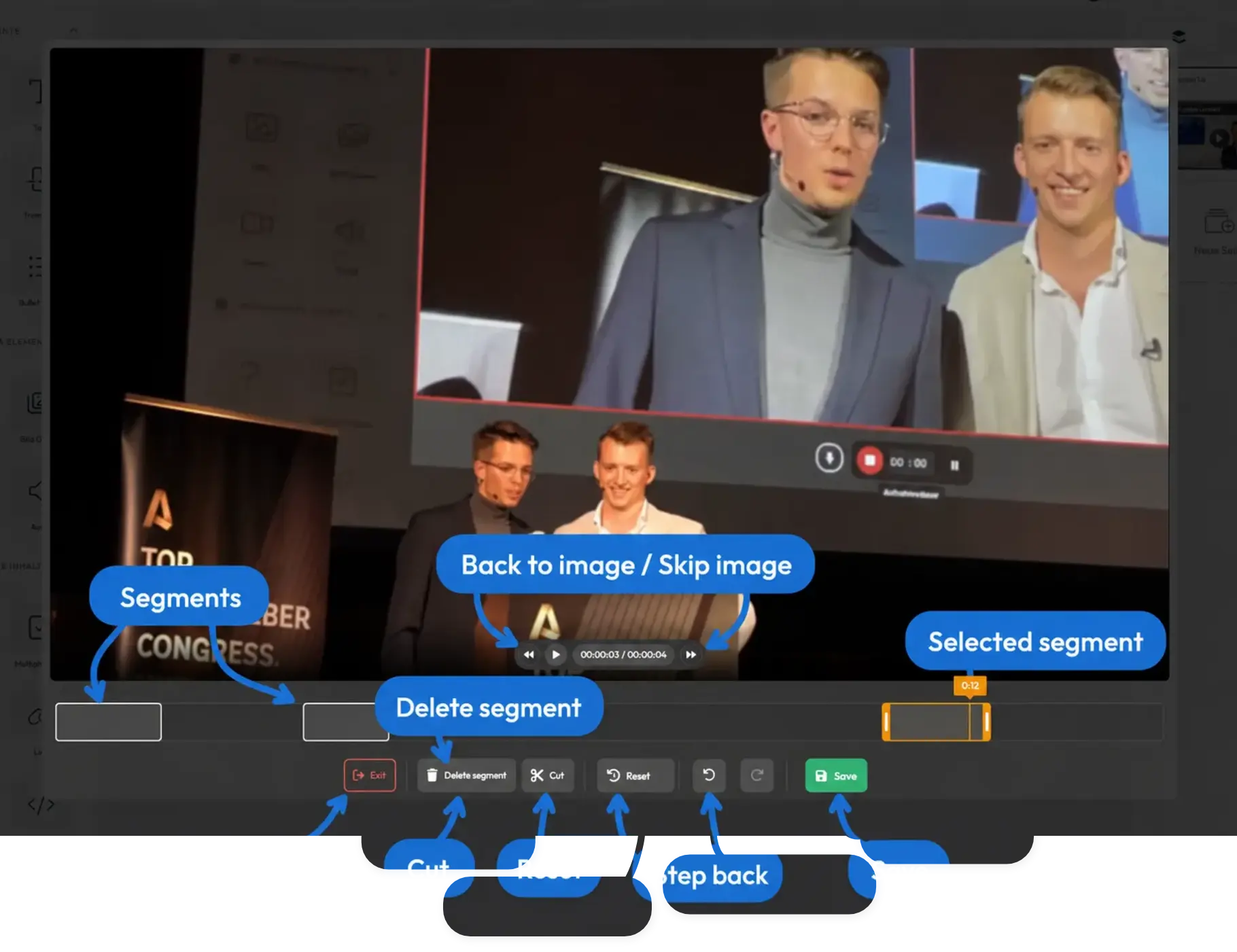
To trim the beginning or end, simply use your mouse to drag the left or right side of the orange bar and make the section shorter.
Remove Speaking Mistakes With the Cut Feature:
To cut out a speaking mistake, simply jump to where the mistake occurs and click the "Cut" button. This creates a cut at that point, and you can drag the section to remove the speaking mistake.
Preview the Result Instantly:
To preview the result, click the Play button. You'll see the final result directly in the video.
Move Forward or Backward One Frame at a Time:
Use the arrow buttons next to the Play button to move forward or backward one frame at a time. This is especially useful when you want to place your cuts with precision.
How to Edit Videos Later:
To edit videos later, simply click the settings icon in the top right of a video in the editor, then click "Edit Video." It's that easy – the LearningSuite Video Cutter opens right away!
Share Link Button:
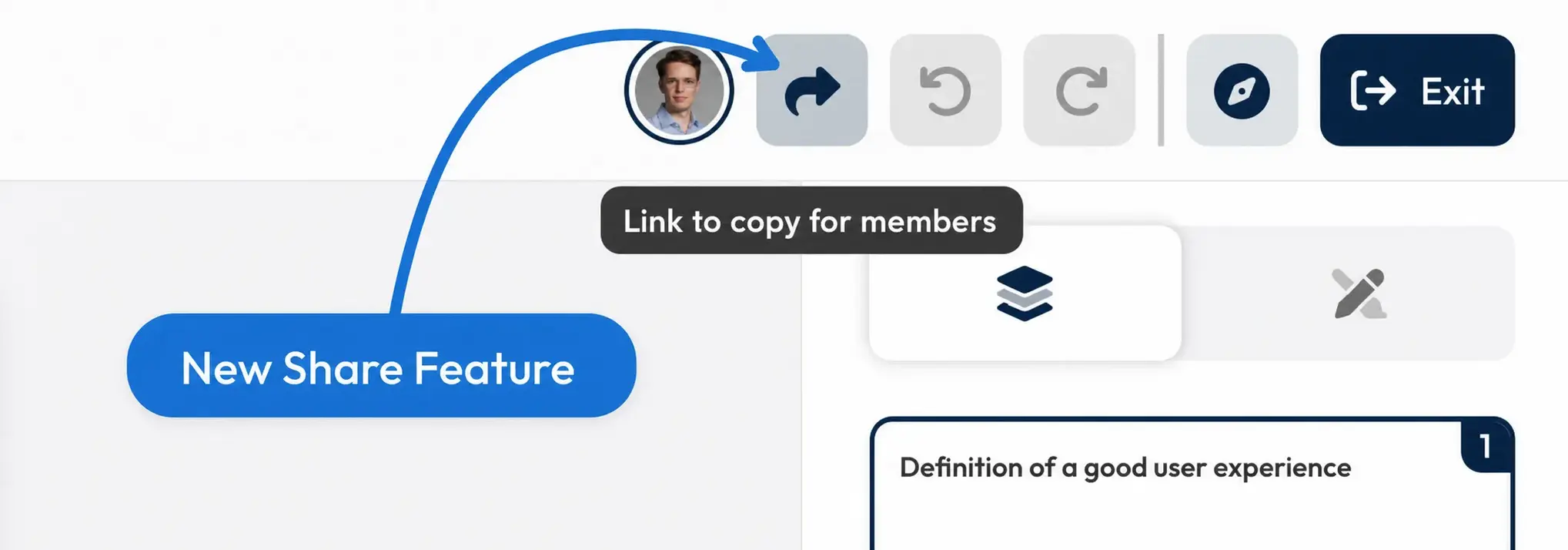
With the Share Link button in the top right of the editor, you can now quickly and easily send members the right link to a lesson. The shortened links are easy to copy and send to your member.
On-Demand Access Feature:
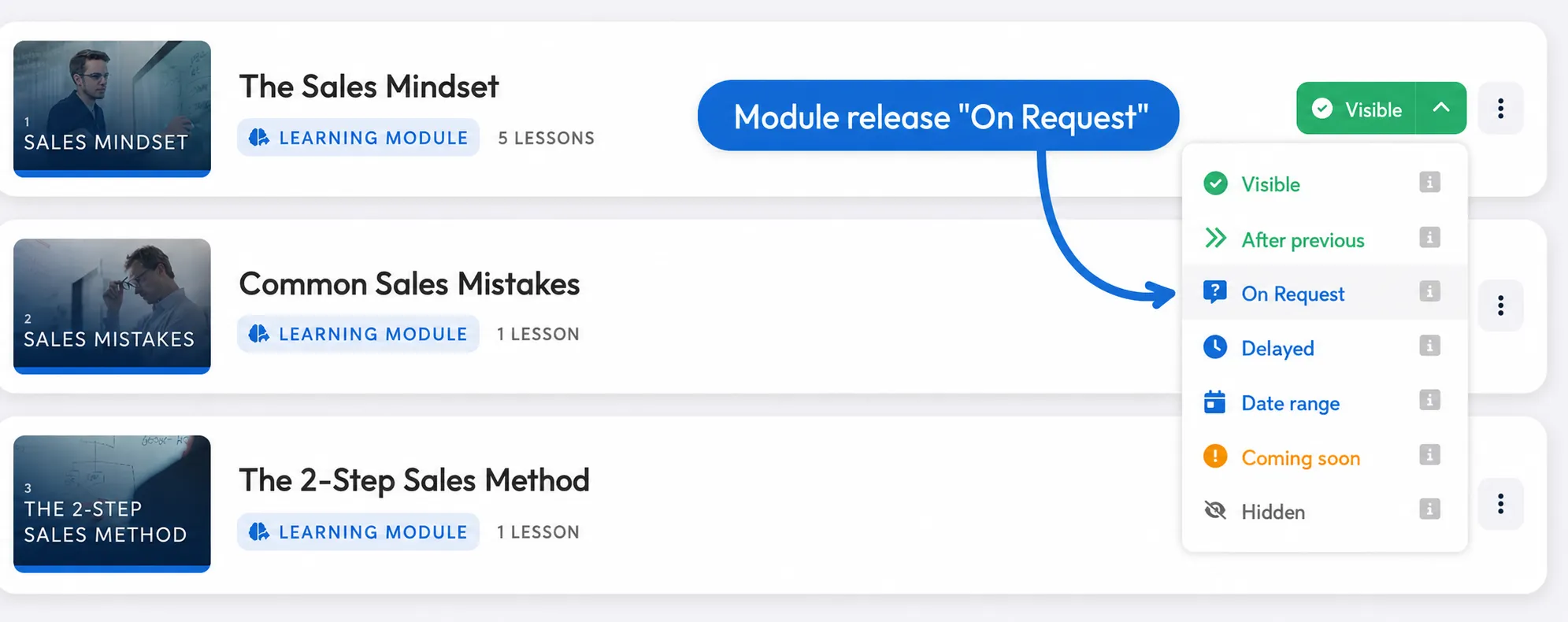
You can now enable the on-demand feature for modules. This lets members send you access requests for individual modules they'd like to access.
To activate this feature, simply open a course and click the content drip for a module. You'll now find the new "On Demand" option there:
This feature is ideal for modules you want to offer as an upsell or that require specific prerequisites, such as attending a live call.
Members Request Access to a Module:
Members can then send you an access request by clicking "Request" on the module.
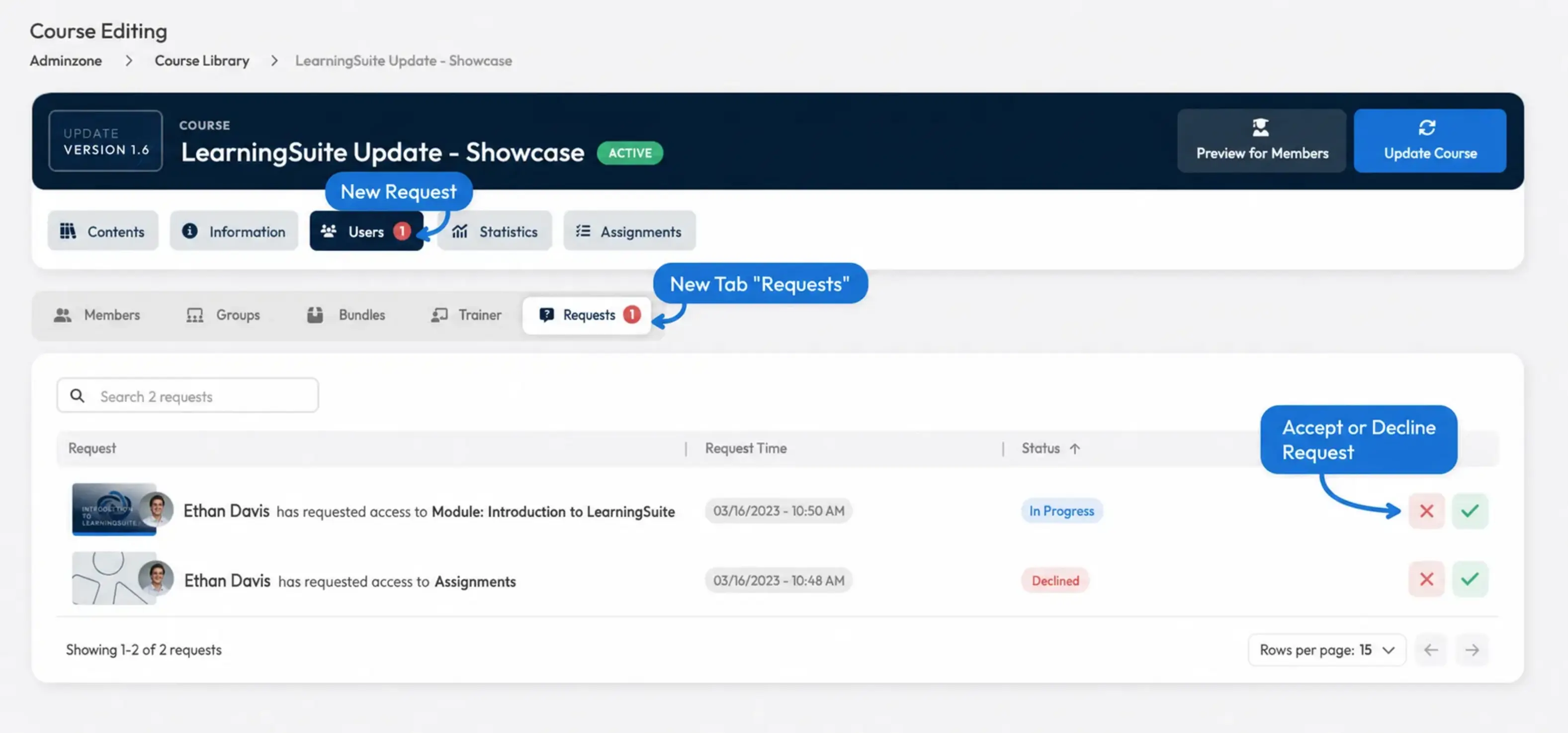
As a coach, you'll find access requests from members under the "Users" tab. You'll now see a new tab called "Requests." A red notification badge instantly lets you know when there are new requests in the course, so you can process them.
You can either decline requests with a reason or accept them directly. The member will then receive an email letting them know whether they have been granted access, along with the reason.
Video End Cards:
At the end of a video, members can now go directly to the next lesson / step or the next task.
The Play button in the bottom left is now displayed as the "Watch Again" button at the end.
When the Lesson Is Complete:
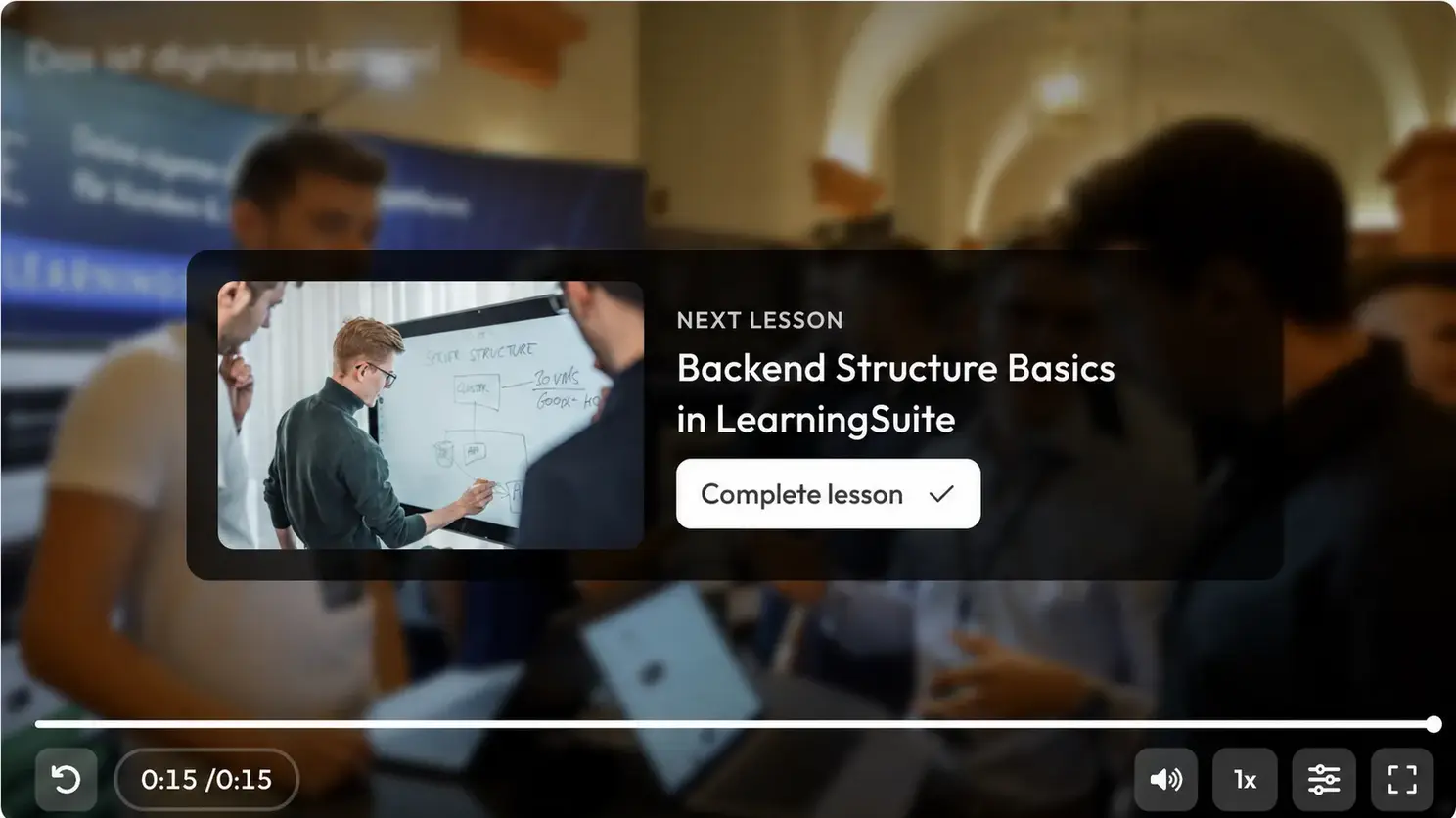
If there are no more tasks in the lesson and you're on the final page, you can now complete the lesson directly at the end of the video and move on to the next lesson.
When There Are Still Assignments in the Lesson:
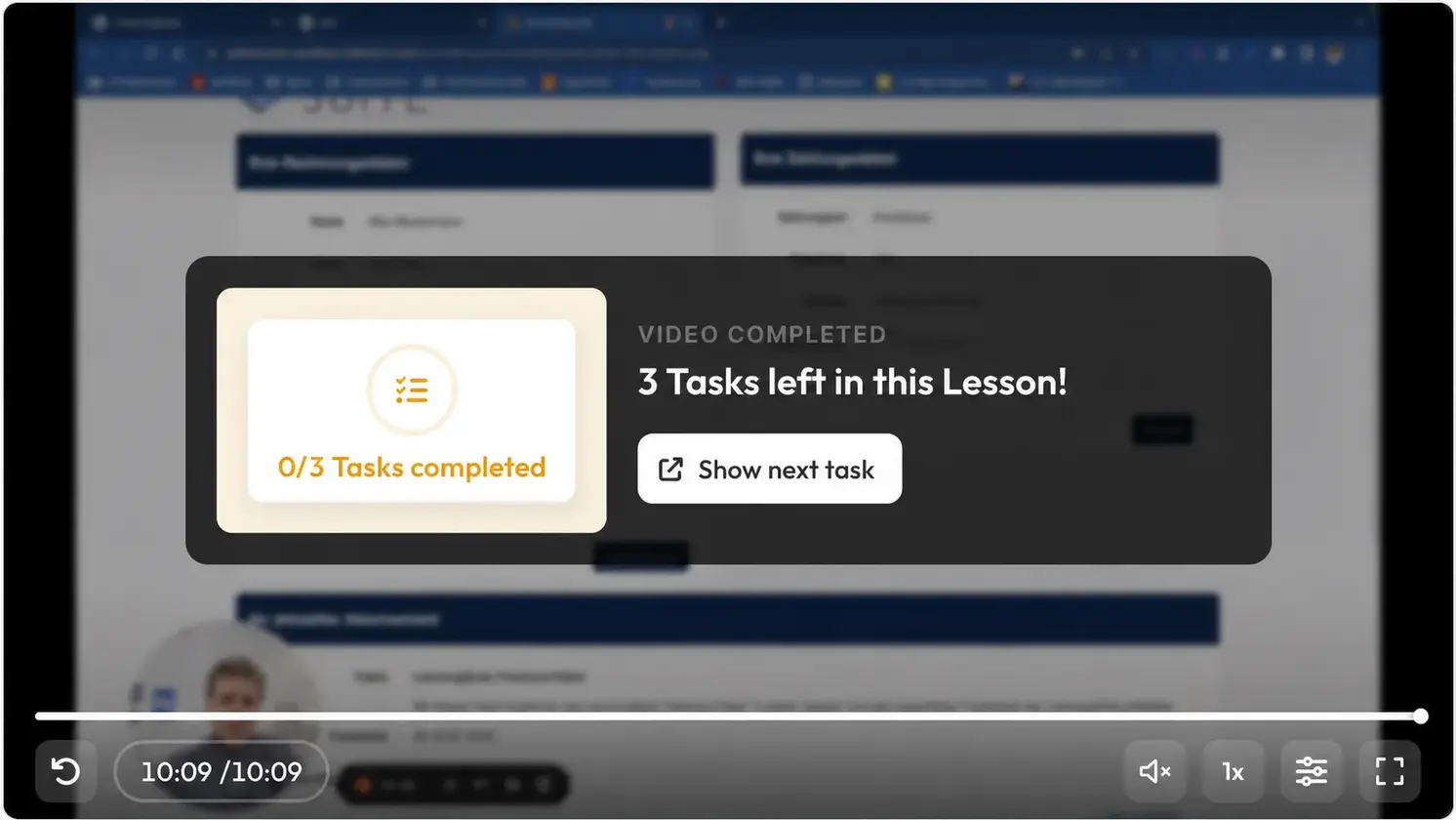
If there are still assignments in the lesson that the member needs to complete, a small window now appears over the video at the end. It lets the member know that there are still tasks to complete in this lesson. When the member clicks the button, the page automatically scrolls to the next task and the assignment is highlighted.
When There Are More Pages in the Lesson:
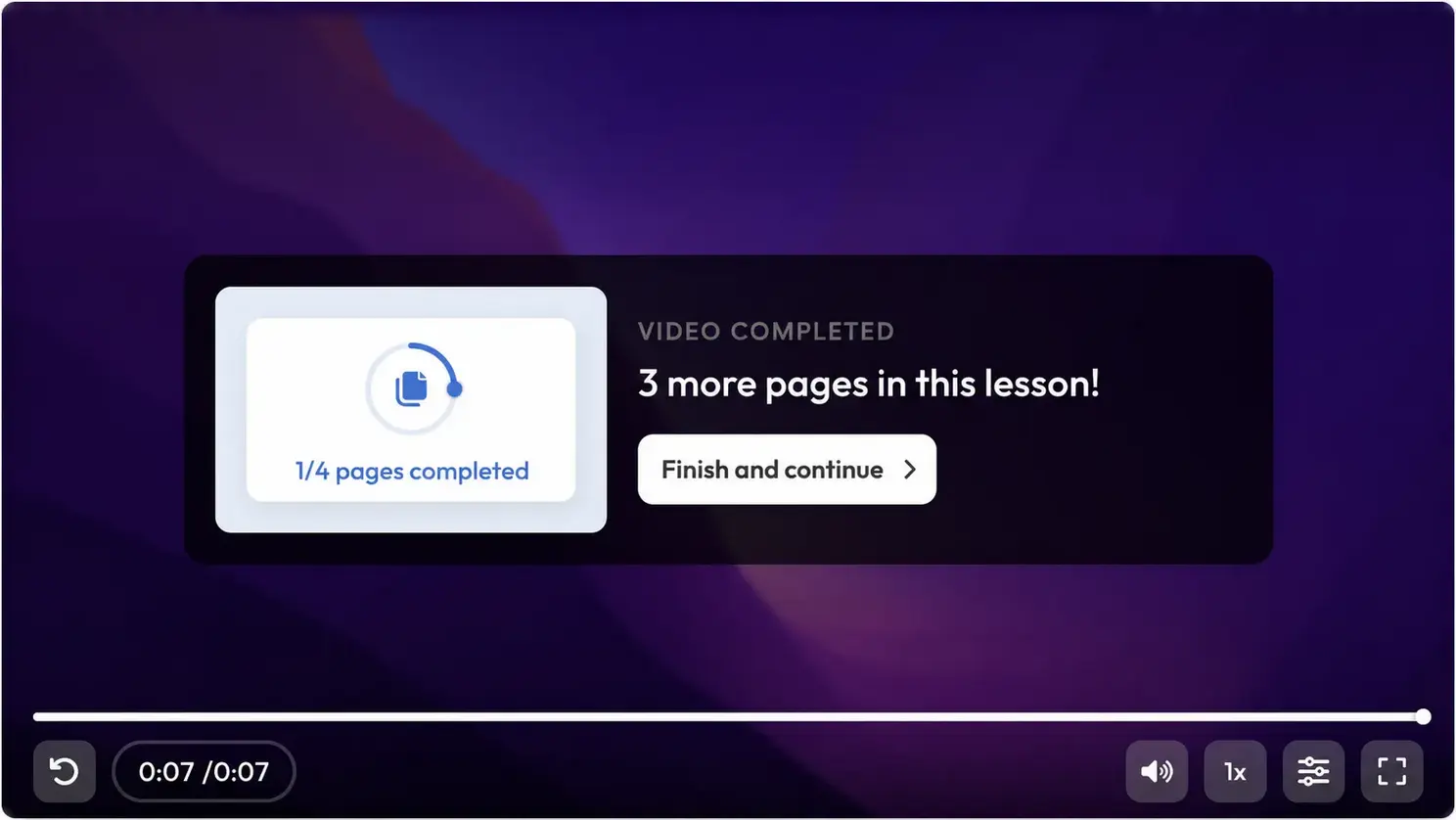
If there are more pages in the lesson, this is shown directly at the end of the video, and you can move straight to the next page.
Shortened Permalinks:
Links in the member view are now significantly shorter than before, and the course name is now also displayed in the links.
Performance Improvements:
Thanks to improvements in the codebase and a new compression method, we've increased the initial loading speed by 300%. This makes a major difference, especially with slow internet connections.
More Improvements:
- The assignments view is now responsive and also works on smartphones
- Coach feedback is now also displayed for assignments on the admin page
- Coach feedback now has a new design
- The link card has a new design
- The Discord logo has been added to the icons
- Sections and lessons now have a "Copy to" feature that lets you copy an element and move it to another location
- The next-section card after completing a section in the member view has a new design
- The Help Center is now available in both German and English, depending on the system language
- Various bug fixes and optimizations